 Advanced Simulation

What is a parametric design study?
In this blog, we will explore the concept of parametric design and illustrate its application
through a use case.
Parametric Design Study is an analytical method utilized in engineering and design that involves systematically varying parameters within a model to assess how these modifications affect the design’s behavior or performance. Rather than creating separate models for each design variant, parametric studies turn all the dimensions into design variables and automatically generate and evaluate numerous design scenarios.
Through this design exploration the tasks that typically require weeks can often be completed in just days or even hours. In 3DEXPERIENCE platform this is typically achieved through the integration of tools like CATIA, SIMULIA, and Design Study apps that enable users to define parameter sets, create variant models, and run simulations or performance evaluations seamlessly.
By conducting a parametric study in 3DEXPERIENCE, designers and analysis engineers can:
-
Evaluate how design changes impact performance.
-
Identify optimal solutions early in the development process.
-
Automate repetitive tasks using rule-based design and scripting. Collaboration of disciplines within a single unified data environment.
The goal for this example is to illustrate the general step-by-step procedure of conducting a simulation, with the ultimate objective of improving the CAD design. The improvement is based on the simulation results obtained through Parametric Design Study feature in 3DEXPEREINCE.
Setting up the model
1. Geometry creation and parameters
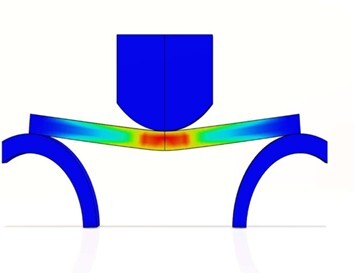
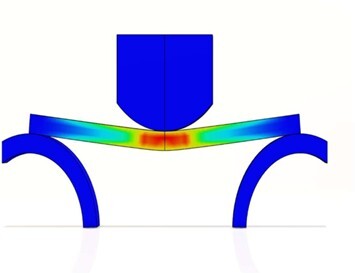
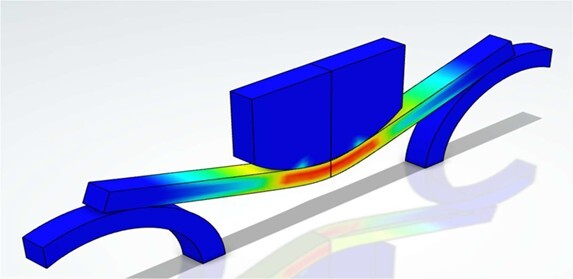
Our example model consists of a bar, a punch load, and a support, leveraging symmetry to save computational resources. 3DX consists of many apps that are used in the workflow accordingly. The Assembly Design app in 3DEXPERIENCE is used for creating and managing assemblies of parts in a structured and parametric way. It's part of the CATIA roles and provides a powerful environment for designing mechanical assemblies efficiently.
Steps:
-
Open 3DEXPERIENCE and import your .3dxml geometry.
-
Use the Assembly Design app to activate the bar model.
-
In the Formula tool, define three parameters: Width, Height, and Length.
-
Set their initial values to 10 mm (Width and Height) and 100 mm (Length).
 Defining materials
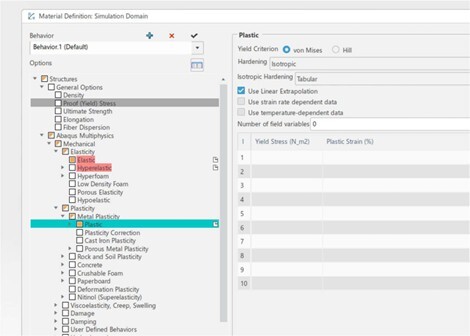
Create a material with both elastic and elastic-plastic behavior using the Material Definition app.
Steps:
-
Name the material “Steel.”
-
Under simulation domain:
-
Density: 7800 kg/m³
-
Young’s Modulus: 2.1e+11 N/m²
-
Poisson’s Ratio: 0.3
-
Yield Stress: 300 MPa at 0 strain; 310 MPa at 0.1 strain
-
-
Add a second, elastic-only behaviour for the support components.
Meshing the model
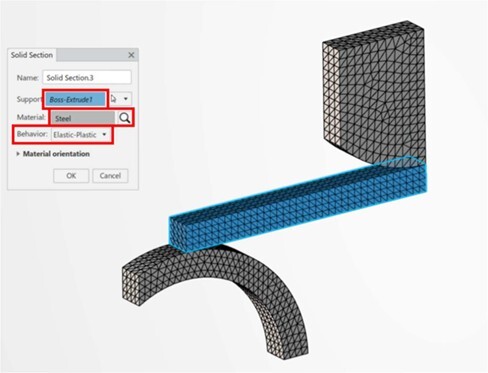
Use the Structural Model Creation app to generate a mesh and assign materials:
-
Apply Elastic-Plastic behavior to the bar.
-
Apply Elastic behavior to the punch and support.
-
Use tetrahedral meshing for all components.
Running the simulation
1. Simulation setup
In the Mechanical Scenario Creation app, create two static general (enable geometric nonlinearity and stabilization) steps:
-
Step 1: Loading
-
Step 2: Unloading
Define Interactions:
-
Contact interactions with 0.1 friction coefficient
-
Boundary conditions to constrain symmetry planes
-
Applied load: -35 mm applied translation on the punch
2. Simulation execution
-
Click “Simulate” and choose between Local or Cloud execution.
-
Assign appropriate number of cores.
-
Once complete, visualize results and enable model symmetry in the Display tab to see the full deformation.
Design iteration
After reviewing results, try adjusting the parameters:
-
Change Width to 12 mm and Height to 15 mm
-
Update the model tree and re-run the simulation
-
Use Compare Results to assess how displacement and stress distributions change
Parametric design improvement study
Now, take it a step further by launching a Design Improvement Study:
1. Setup
-
Use the Parametric Design Study app
-
Reference your existing simulation project
2. Design variables
-
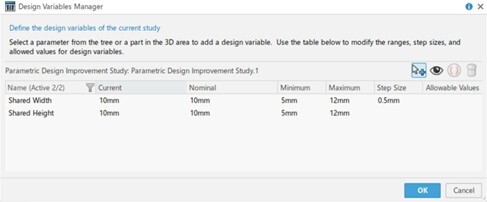
Add Width and Height as variables
-
Define min/max values and step size
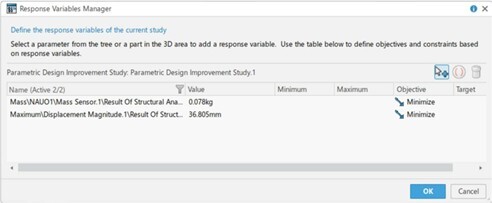
3. Response variables
-
Set objectives to minimize displacement and mass
-
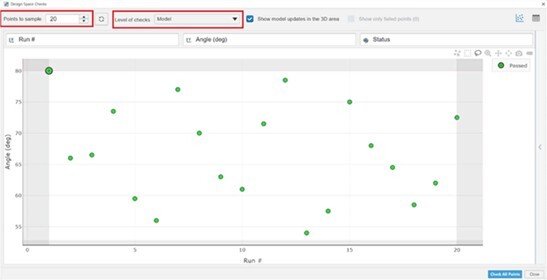
Use the Design Space Check to validate 20 design points
4. Design space check
-
Set The number of points to sample to 20
-
Set the level of checks to the Model
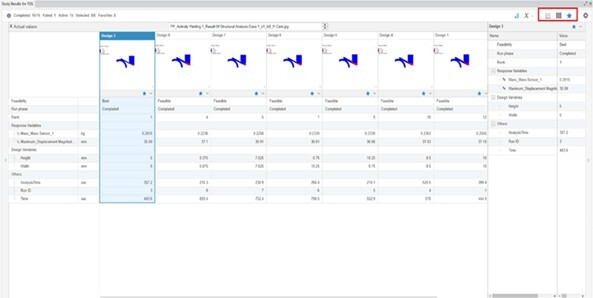
5. Simulation & analysis
-
Run the full study locally or on the cloud
-
View live updates as design points are tested
-
Use scatter plots and interactive results to:
-
Compare design variants
-
Identify the best-performing model
-
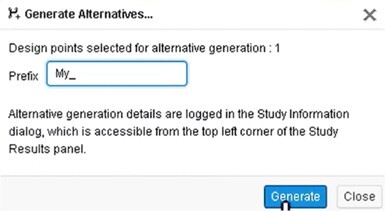
6. Generate best alternative
-
Click the down arrow next to the favourite star
-
Choose Generate Alternatives from the menu
-
Enter a name prefix (e.g., My_) and click Generate
-
Save and close the study results windows
-
New tab with generated alternative will open
Final thoughts
Using Parametric Design Study in 3DEXPERIENCE empowers engineers and designers to automate, simulate, and optimize in a unified digital environment.
From initial geometry to multi-variable analysis, this process reduces development cycles and leads to better design decisions. That making it a vital methodology in modern product design and simulation workflows. If you're looking to integrate simulation-driven design into your workflow, PDS is a powerful capability to master.
Need to learn more? Please reach out to us for a comprehensive tutorial on this example.

 MBSE
MBSE