 Engineering

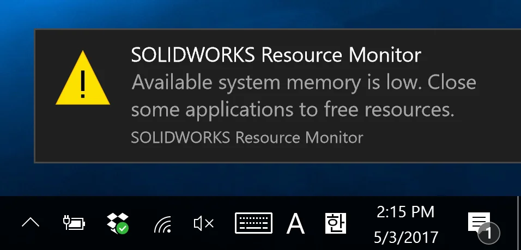
In this blog, a couple of suggestions will be made that will help prevent these messages from appearing and hopefully avoid the inevitable crashes due to insufficient system memory. The resource monitor does not pinpoint what’s causing the lack of memory/resource. It could be any of or a combination of GDI Objects, RAM, and VRAM shortage.
You check the Task Manager, only to find that there is still plenty of RAM left, not even at 50% capacity. Most of the time, you are likely to ignore or dismiss this message and just continue working. However, if this message turns into “Available system memory is Critically Low,” then we are at risk of the application crashing.
GDI objects limit
GDI (graphical device interfaces) are what Microsoft Windows uses to represent graphical objects to external devices, most commonly the monitor. Every element within any CAD system uses GDI objects.
For every window or application that is open, it uses up GDI Objects. The problem arises when there are too many objects in use, causing unresponsive program behaviour. This is also what may trigger a lack of system resources. For Windows 8 and later, the system-wide GDI objects are limited to max out at 65,536, and the maximum single process is 16,384.
The default limit set by Windows for any single process is 10,000 GDI objects. If your application's GDI objects exceed this amount, that process is likely to crash.
SOLIDWORKS should not require more than the default limit of 10,000. If you observe over10,000 GDI objects after following the steps below to monitor GDI usage, contact your local VAR (value-added reseller) for assistance troubleshooting this and reporting to SOLIDWORKS Support.
You may monitor this through the Task Manager. This solution will involve editing the Windows Registry.
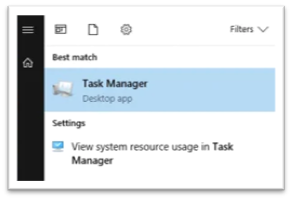
- Open Task Manager (right-click on the Start bar > Task Manager OR through CTRL+ALT+DEL):
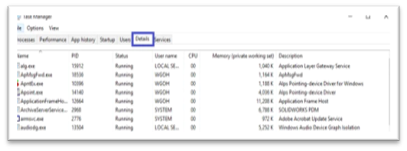
- Click on the 'Details' tab:
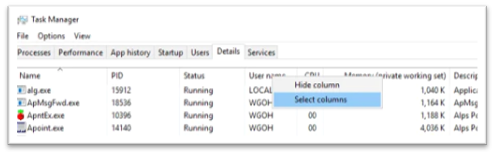
- Right click on one of the columns and click 'Select Columns':
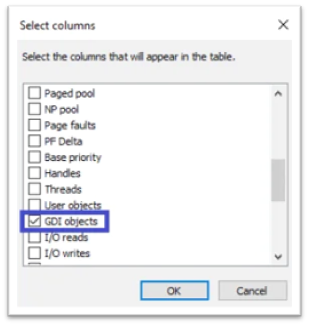
- Tick the GDI objects:
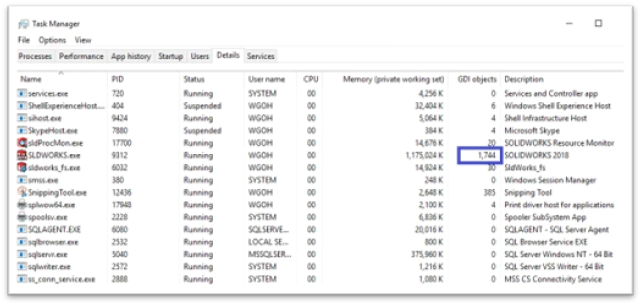
Method 1: Virtual memory settings
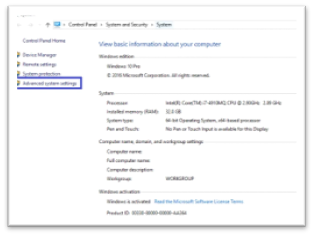
- Go to Control Panel > System > Advanced System Settings
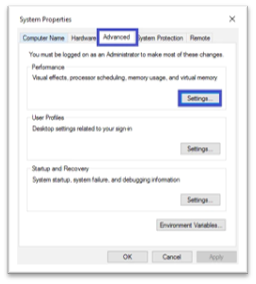
- Advanced (Tab) Settings:
- Advanced > Change
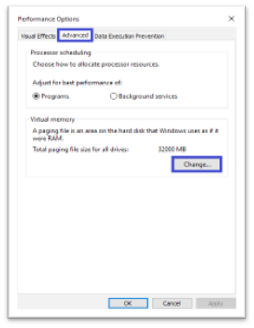
- Uncheck “Automatically manage paging file size for all drives”. Choose the Driver which you would prefer to utilize the virtual memory.
- Under Custom size, enter the value double the size of the amount of physical RAM installed in your PC. (If you have 16GB, type in 32000MB).
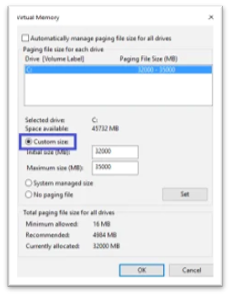
- Enter the Initial size value of 2 times the amount of physical RAM installed in your system (eg., if you have 16GB, type in 32000MB).
- Click on 'Set'.
- Restart your workstation.
Method 2: Registry settings
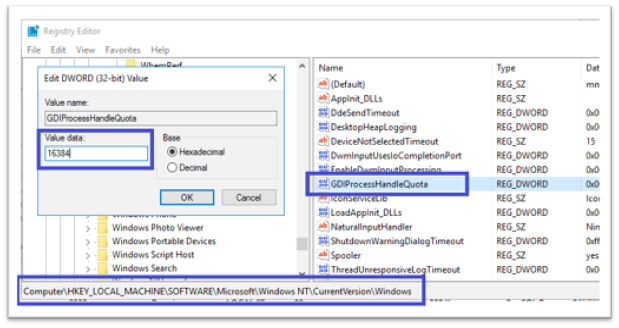
- Open Registory Editor in Elevated Mode
- Press 'Windows Key+R', type 'regedit', then press 'CTRL+SHIFT+ENTER' to run it as administrator.
- Navigate to the following registry path:
HKEY_LOCAL_MACHINE\SOFTWARE\Microsoft\WindowsNT\CurrentVersion\Windows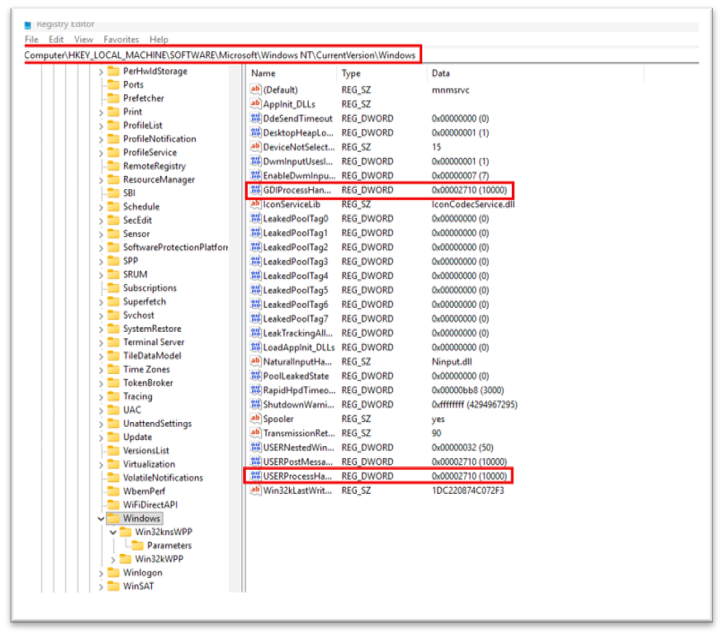
- Modify the following values:
- Locate the values named:
- GDIProcessHandleQuota
- USERProcessHandlQuota
- If they do not exist, right-click on the right pane, choose 'New > DWORD (32-bit) Value', and name them accordingly.
- Double-click each value, set the 'Base' to 'Decimal', then enter:
- GDIProcessHandle Quota: 65536
- USERProcessHandle Quota: 18000
- Locate the values named:
- Repeat the same changes in the 32-bit Registry path (for 64-bit systems):
HKEY_LOCAL_MACHINE\SOFTWARE\Wow6432Node\Microsoft\WindowsNT\CurrentVersion\Windows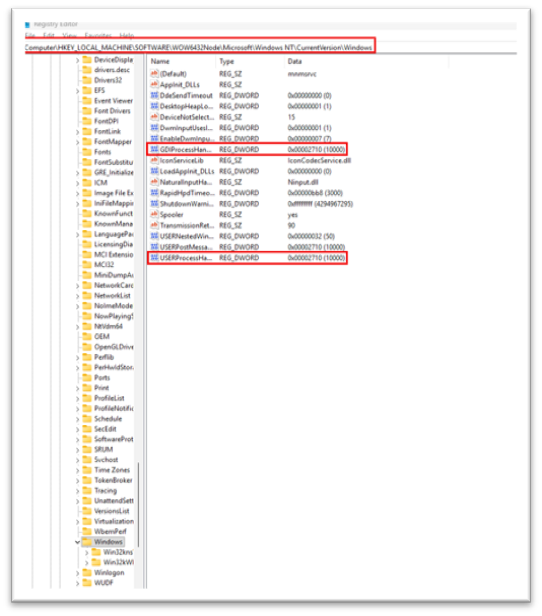
- Apply the same changes for GDI Process Handle Quota and USERProcessHandleQuota as described above.
- Restart your computer.
- Changes will take effect after the system restarts.
In our experience...
By diligently applying these advanced troubleshooting techniques, you can eliminate the Resource Monitor warning and restore optimal performance to your SOLIDWORKS environment.
These are just some of the best practices that are taught in our SOLIDWORKS training courses that will help you reduce the load on the software when modelling in SOLIDWORKS.
So, get ahead of poor performance by implementing these suggestions in your SOLIDWORKS setup, and don’t suffer in silence. If you are experiencing poor performance with SOLIDWORKS, get in touch with our technical support team.