 Advanced Simulation

Abaqus/CAE is integrated with Python 2.7, settings and commands are read through python-based environment files at start-up and commands are streamed to replay files along the session. This produces powerful opportunities to form the CAE environment into a specialized package to accelerate day-to-day tasks. Instead of painting a flowery picture I’d rather jump in and demonstrate selected techniques that enables you to customize the user interface to your will.
I often work on organically shaped CAD data and often find the default geometrical refinement setting too low – this does sadly not exist in the session.default* objects so we need to apply some creative approaches.
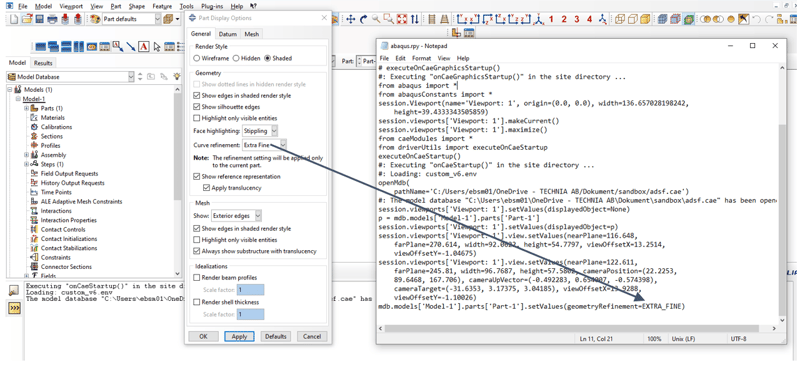
Identification of the required snippet required to change the Geometrical Refinement Level is found by changing this parameter for a specific part in Abaqus/CAE and look at the Abaqus Reply File (RPY).
I want to make a script that changes the refinement level for all the parts in the model which is currently open. The required code can then be made accessible as a kernel script, kernel plugin or integrated in the environment to be run when specific functions are called.
Kernel Script
Kernel scripts are useful for developing scripts or running project specific code that requires limited accessibility. The required code block that loops over the parts in the model is fairly simple and requires the mandatory imports from Abaqus and abaqusConstants.
GeometryRefinement.py: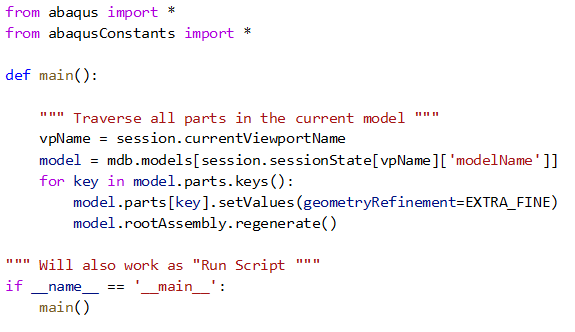
This script can be run by “File->Run Script..” in Abaqus.
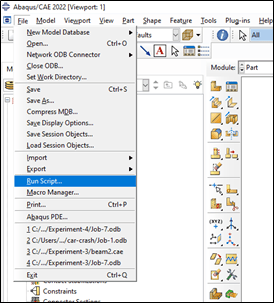
Registered Kernel Script
Browsing for the script each time such a script is required is tedious. We can with a few more lines turn it into an accessible plugin within Abaqus/CAE by registering the script at start-up.
GeometryRefinement_Register.py:
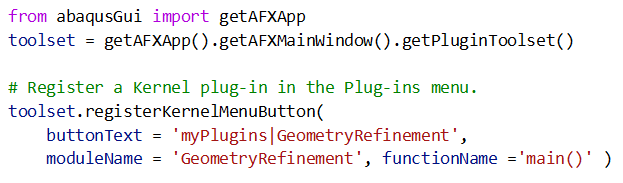
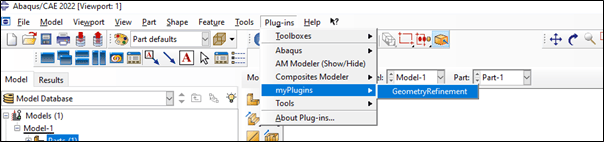
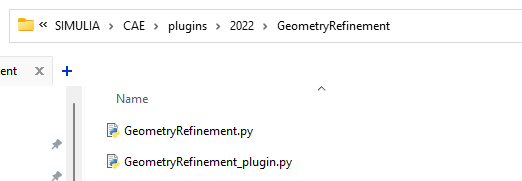
On start-up, Abaqus 2022 scans for plugin in ”C:\SIMULIA\CAE\plugins\2022”. Create a folder called “Geometry Refinement” at this location and add GeometryRefinement.py and GeometryRefinement_plugin.py to make them available in Abaqus/CAE.
Environment File
Both kernel script and registered plugin requires interaction to be launched. If you don’t work regularly on complex CAD data this functionality can be implemented as a callback function in the environment file.
One of the most common functions in the environment files are “onCaeStartup()” which enables us to set some other defaults too. Most of these defaults can naturally be saved using “File->Save Display Options…”.
Callback functions can be run before or after a specific command in Abaqus has been called. This means it’s possible to automatically get some code run at specific events!
First we need to locate our environment file: “C:\SIMULIA\EstProducts\2022\win_b64\SMA\site\custom_v6.env”
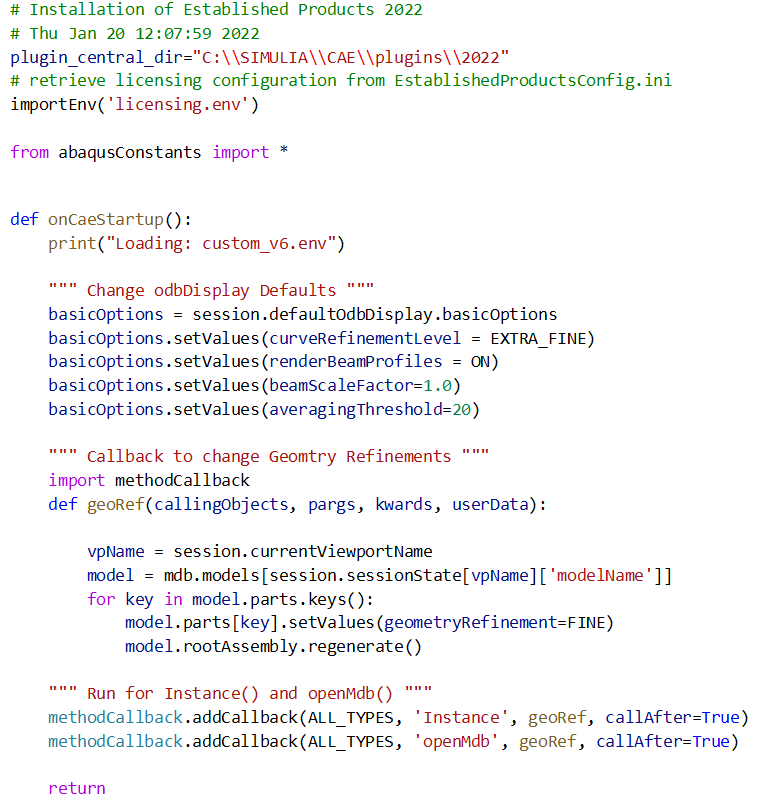
I have chosen to run the refinement procedure every time I create an instance or load a .cae file. By look at the reply file (.rpy) we find the function names “Instance()” and “openMdb()” – we can use methodCallback.addCallback to attach our snippet to these functions.
Custom_v6.env:
Closing Remarks
We have look at the three different techniques to run a simple function. Depending on the intended use one of these might be preferable. For example, if you are working on complex CAD geometry – having this snippet run unintentionally might actually cost you a few minutes or completely break melt your computer when importing huge assemblies. It’s better to decide when to run it for this example – but there are many other uses for using callbacks!
Want to talk about scripting? Get in contact with us..


 Engineering