 MBSE
MBSE
Dymola comes with a useful package called Favorites. This package provides an easy way for a user to transfer models. This post looks at how to use this feature.
Where is the favorites package?
The Favorites package is at the top of the Package Browser as in Figure 1.
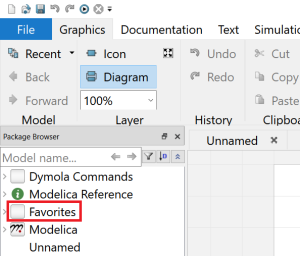
Figure 1. Location of the Favorites package in Package Browser
Why use the favorites package?
Favorites provides an easy way to transfer classes from deep within one package to the Favorites package so that these classes are easy to find and make use of.
How to use the favorites package?
Just select the class in Package Brower and right click, and select Add as Favorites as in Figure 2.
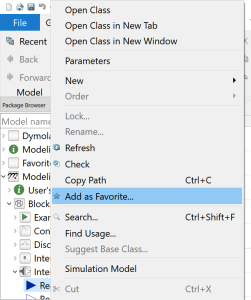
Figure 2. Selecting Add as Favorites
This adds this class to the Favorites package. When dragged into models, it will appear under the original full name of the model. For example, if I add Modelica.Blocks.Interfaces.RealInput to Favorites and then drag Favorites.RealInput into Unnamed, the original name is displayed as in Figure 3.
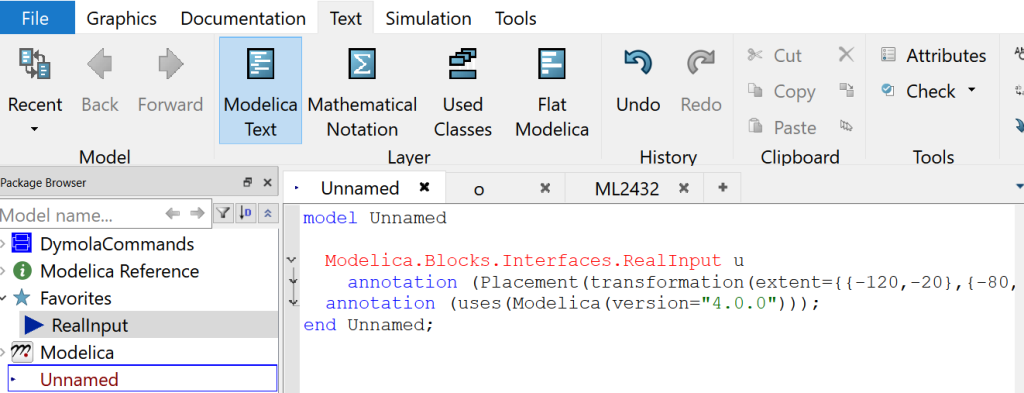
Figure 3. Favorites.RealInput is dragged into Unnamed and the original full path name, Modelica.Blocks.Interfaces.RealInput, appears in Unnamed.
This feature allows you to put all the models that you require into the Favorites package and then easily drag them from this location into the class to be used. This becomes useful when the model being added to Favorites is going to be used multiple times. Or when the package hierarchy is large, it is difficult to navigate from the class you want to drag-in to the class where you want the class added.
Other uses
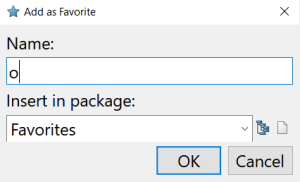
Another use is to abbreviate useful functions that can be used from the command line. For example the DymolaCommands.SimulatorAPI.openModelFile provides a way to open a model based on the Package Browser path of the model (i.e. DymolaCommands.SimulatorAPI.openModelFile(“Modelica.Blocks.Examples.PID_Controller”) opens the Modelica.Blocks.Examples.PID_Controller model in Dymola). So by adding this function to Favorites as o as in Figure 4.
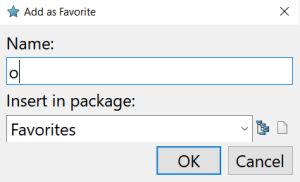
Figure 4. Renaming the class that is being added to Favorites as o
Now to open a model write: Favorites.o(“Modelica.Blocks.Examples.PID_Controller”). To further simplify this you can add import Favorites.* to startup.mos (see the Dymola setup post) and then just o(“Modelica.Blocks.Examples.PID_Controller”) can be used to open a model, note that care is required that you do not have any classes in Favorites that have the same names as classes that may be opened in the Package Browser.
Conclusion
As can be seen, the Favorites package can be used to save time.