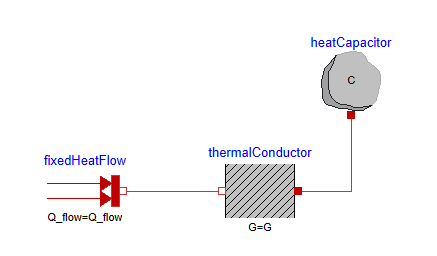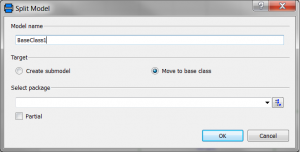
The previous version of Dymola incorporated the possibility to create a submodel from some of the components of a model (this is the link to the corresponding article). This feature has been extended now and allows the creation of base classes. The procedure is completely analogous:
1. Select the components that will take part in the base class.
2. Right-click on them and then click on Split Model. A menu will pop up.
3. The aforementioned menu includes the following fields:
- Model name: set the name for the corresponding submodel / base class.
- Target: define the operation to be carried out (Create submodel or Move to base class).
- Location and Component name are only for submodels.
- Select package (base classes only): select the package where the new base class will be stored. Users can also click on Partial to make a partial model out of the base class.
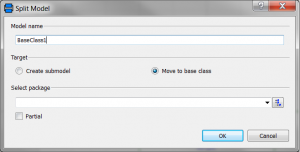
Figure 1. Dialog box of Split Model for “Move to base class”
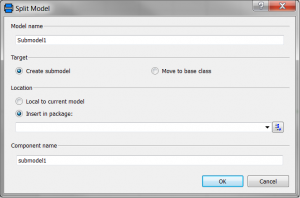
Figure 2. Dialog box of Split Model for “Create submodel” (default view)
When a base class is created, Dymola automatically generates a statement in the text layer of the working model to declare that it has been extended from the new base class. The parameter values of the components of the base class can be modified locally (in the working model) or generically (in the base class), in which case they would become default values in all the models extended from the same base class.
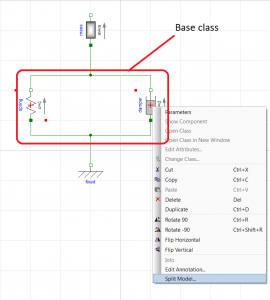
Figure 1. Example of a base class selection from a model