 MBSE
MBSE
In the Modelica language, the annotation keyword is used to define graphics, documentation, menus and many other attributes that do not affect the behaviour of the system modelled. In this post I'm going to focus on the class annotations that let you store the simulation settings used to control the simulation of your experiment. Storing these settings in the class annotations makes it easy for other users of your models to use the same simulation setting without needing to set anything themselves.
Where is the class annotation?
In case you're new to Modelica and Dymola and wondering where to find the annotation in your models, here's a quick guide. Feel free to skip ahead if you're familiar with where annotations appear.
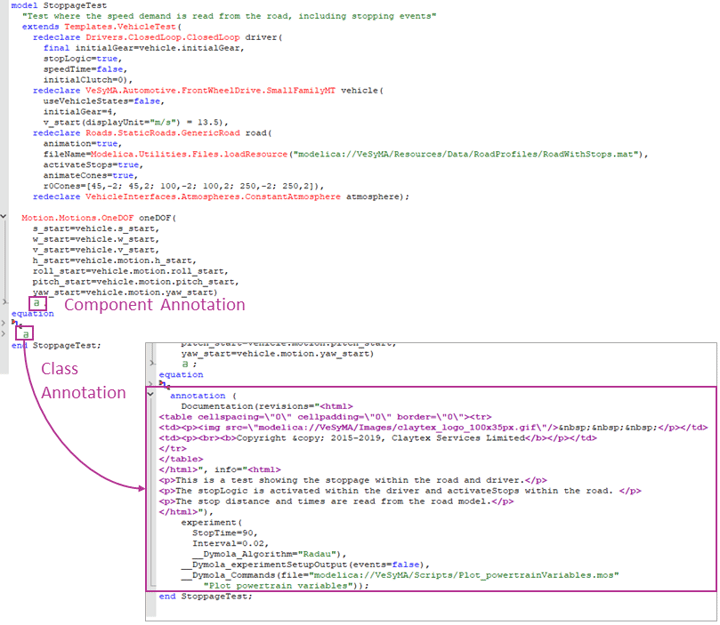
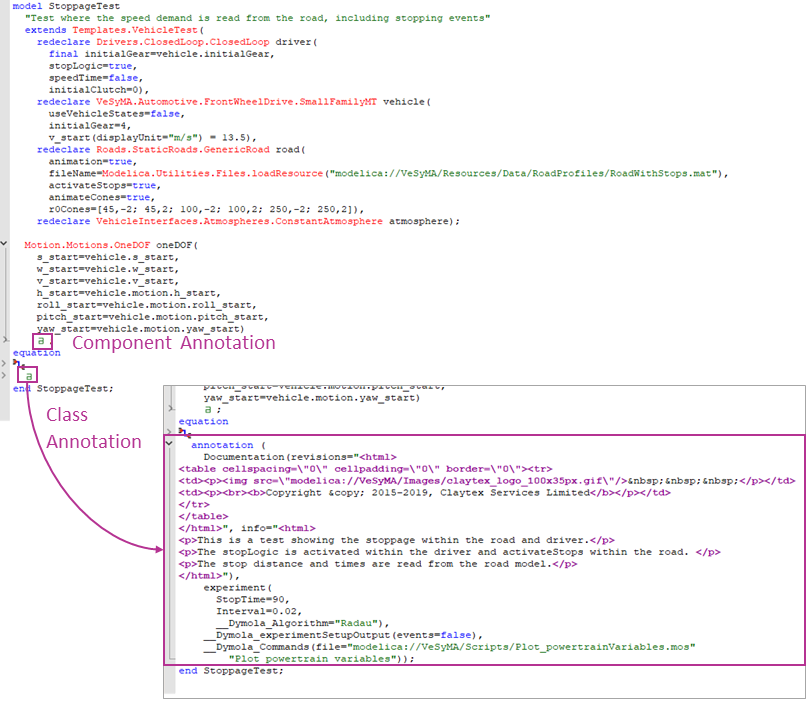
Collapsed annotations are collapsed within a green lower case letter icon in the text. Clicking on this icon will expand the annotation to show the entire code, as shown at the bottom of Figure 1.
Annotations are either:
- Component annotations linked to a specific item in a class (variables, components etc.). They are located at the end of the line declaring that item as highlighted in Figure 1.
- Class annotations are for the entire class, the icon is free-standing and usually located prior to the end line of the class; as shown in Figure 1.
Simulation settings annotations
In a Dymola model, the simulation settings in the class annotation allow you to define the settings you want to be used when your experiment is simulated whether this is you or another user.
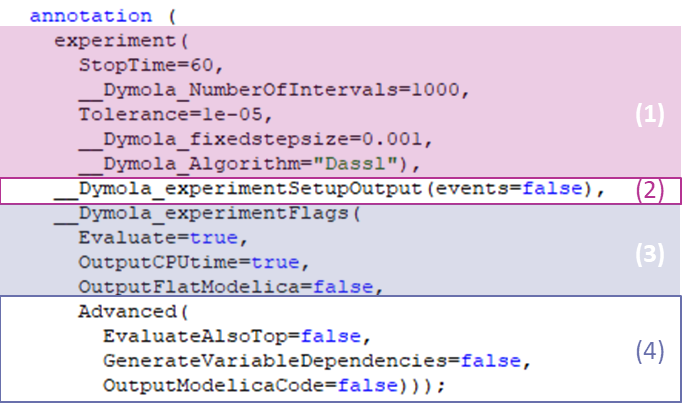
The simulation settings annotations fall in to 4 groups in the class annotation, as illustrated in Figure 2. These groups are (1) experiment, (2) experiment setup output, (3) experiment flags and (4) advanced experiment flags. In the next couple of sections I will go through the options available in each of these groups.
Experiment
annotation(experiment(annotationName = annotationValue));The annotations that fall into the experiment group allow you to control the most general simulation settings. These annotations follow the syntax shown in the code above and the options are shown in the table below.
| Annotation Name | Annotation Value | Purpose |
| StartTime | Number | Start time of the simulation. |
| StopTime | Number | Stop time of the simulation. |
| __Dymola_NumberOfIntervals | Number | Number of results points to be stored. The total number of points stored is also dependent on results at events. |
| Interval | Number | Time interval between results points to be stored. |
| __Dymola_Algorithm | Various solver options | The integration algorithm used to solve the differential equations. |
| Tolerance | Number | Required accuracy. |
| __Dymola_fixedstepsize | Number | Time step used with fixed step size algorithms. |
Experiment setup output
annotation(__Dymola_experimentSetupOutput(annotationName = annotationValue));The annotations in the experiment setup output group allow you to control what is included in the simulation results stored.
| Annotation Name | Annotation Value | Purpose |
| textual | true/false | Store results in textual format. |
| doublePrecision | true/false | Store results with double precision. |
| equidistant | true/false | Store results equidistantly. |
| events | true/false | Store variables before and after events. |
| onlyStopTime | true/false | Store results only at stop time. |
| states | true/false | State variables stored. |
| derivatives | true/false | Derivatives stored. |
| inputs | true/false | Public inputs stored. |
| outputs | true/false | Public outputs stored. |
| auxiliaries | true/false | Auxiliary variables stored. |
Experiment flags
annotation(__Dymola_experimentFlags(annotationName = annotationValue));The experiment flags allow you to store simulation settings equivalent to command line flags in Dymola.
Advanced experiment flags
annotation(__Dymola_experimentFlags(Advanced(annotationName = annotationValue)));This group is a subset of experiment flag annotations.
Creating simulation setting annotations from a GUI
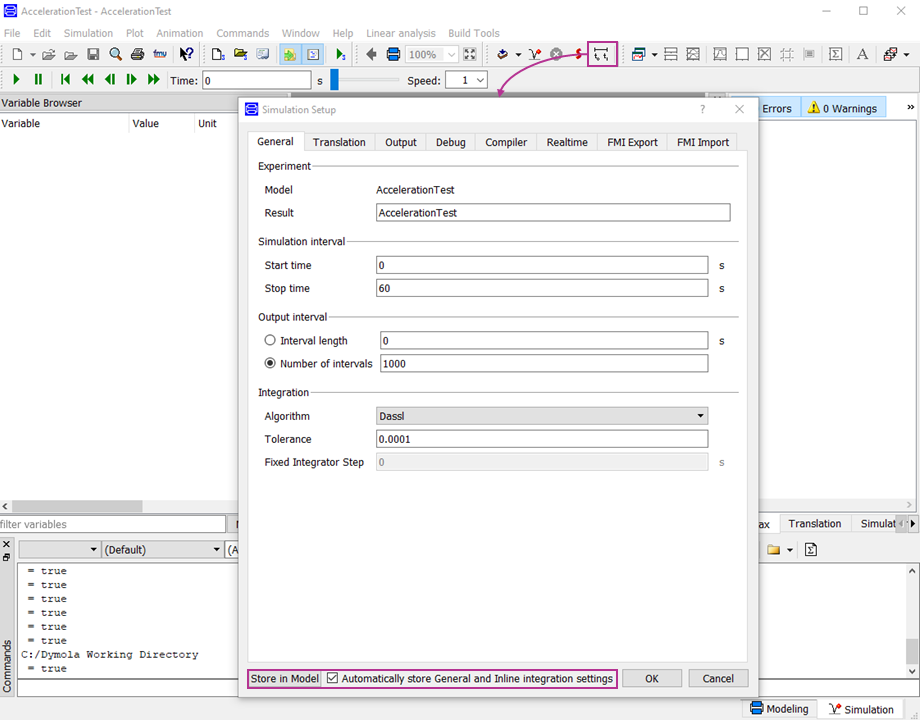
The class annotation of your model can be edited directly in the text or via the Simulation Setup dialog.
FYI
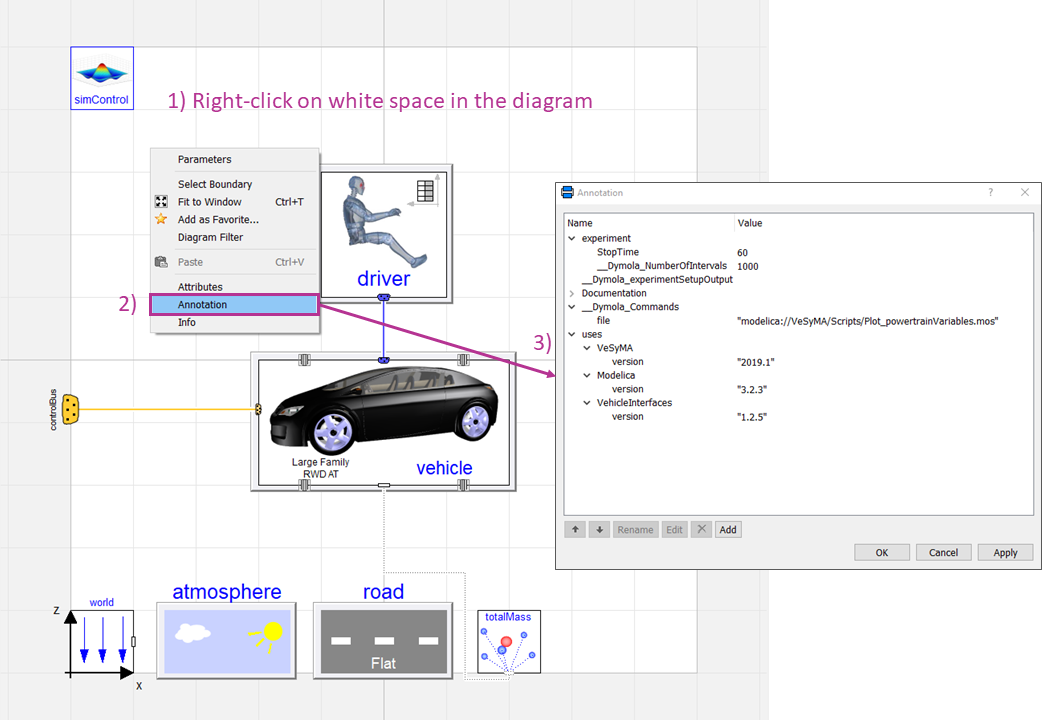
Finally, did you know that you can access the class annotations of your model in the diagram as well as in the text?
References
I used Dymola 2020 and the VeSyMA 2019.1 library.
- Dassault Systemes AB (2019), Dymola User Manual Volume 1
- https://www.modelica.org/documents/ModelicaSpec34.pdf/view
Written by: Hannah Hammond-Scott - Modelica Project Leader
Please get in touch if you have any questions or have got a topic in mind that you would like us to write about. You can submit your questions / topics via: Tech Blog Questions / Topic Suggestion