 MBSE
MBSE
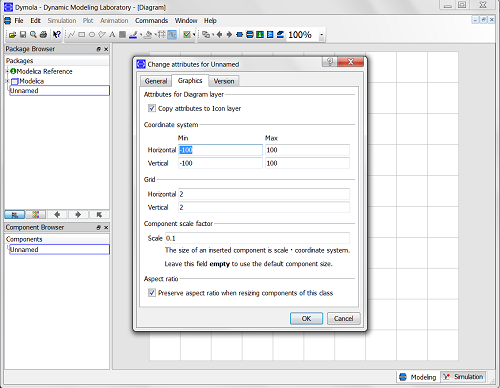
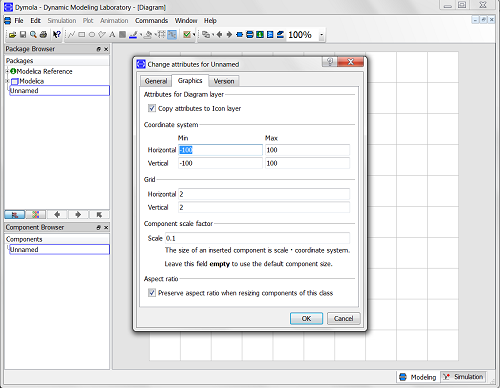
By increasing the size of the diagram layer we gain more space to layout graphical model diagrams. To change the size of the diagram follow these steps:
- Select the class whose diagram layer you wish to resize by double clicking on it in the package browser
- In Modelling mode, select Attributes from the Edit menu and the dialog box shown below will appear.
- In the Graphics tab you will be able to set the extents of your Diagram layer in the Coordinate system section. The extents define the size of the diagram layer.
- The Grid determines the object repositioning step size. Setting the value to 1 means that the objects in the diagram layer can be moved in steps of 1 grid unit. Using a value of 2 means that the smallest step we can move an object by is 2 grid units. The grid lines in a model diagram are 10 step sizes apart
- It’s also possible to resize the Icon layer which is achieved by selecting the check box Copy Attributes to Icon Layer
N.B. We would generally advise not to vastly increase the size of your Diagram layer and to start using sub-models to reduce the Diagram complexity