 MBSE
MBSE
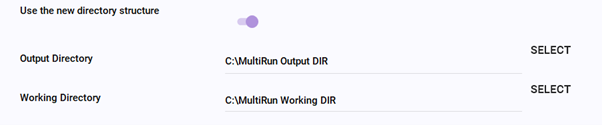
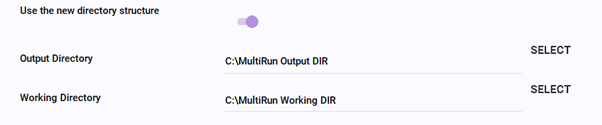
Figure 1: Using folders with recognizable names is good practice.
As you would expect, the files of interest are found in the Output Directory, with the Working Directory being the dynamically linked folder which MultiRun uses when simulating models.
Creating reference results
When setting the MultiRun tool to simulate a batch of models, such as for generating reference results, the GUI will keep the user updated as to the queue of test cases being run and their current status.
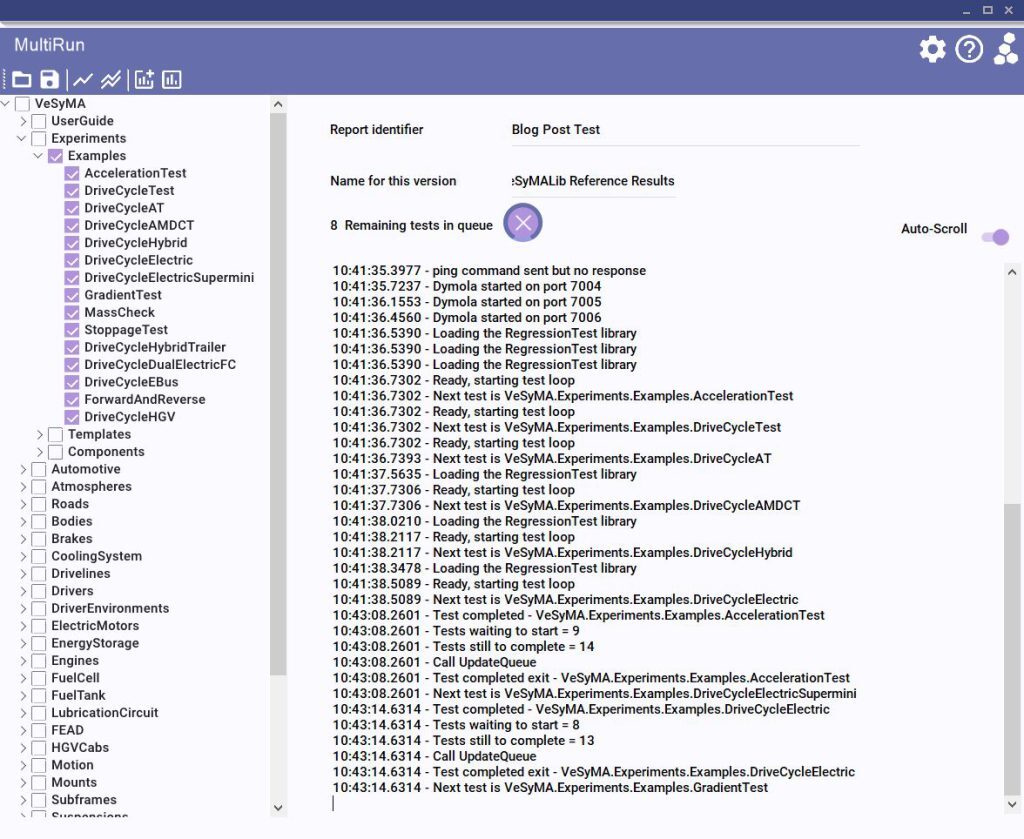
Figure 2: Status of each test case is reported to in the window.
Working directory
Within the Working Directory, you will find a series of folders in numerical order. These relate to each of the cores being used by the MultiRun Tool.
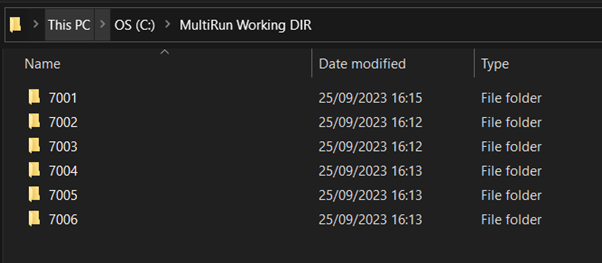
Figure 3: The number of folders shown here is dependent upon the number of cores MultiRun has been instructed to use. Each core thread is denoted by the last 3 digits.
During simulation, all the files generated by the Dymola instance assigned to that core are placed in this folder. These are the familiar files from Dymola simulations found in the Dymola working directory.
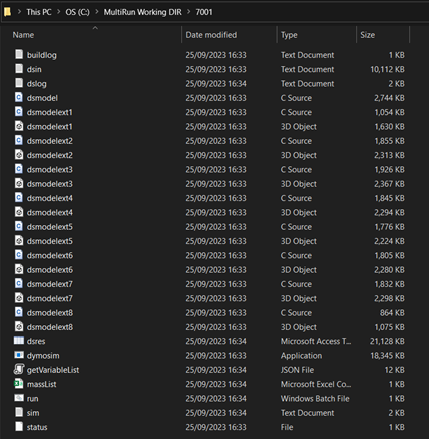
Figure 4: The working directory contents will be recognizable to any Dymola user.
After simulation, MultiRun automatically clears each core folder in the working directory to prevent excess space being taken up by unused files.
Output directory
The output directory is where the interesting information gets stored. MultiRun creates two subfolders, Reports and Results. In Reports, the report files corresponding to each batch of simulations is stored, with the result outputs (more on this later) stored in Results.
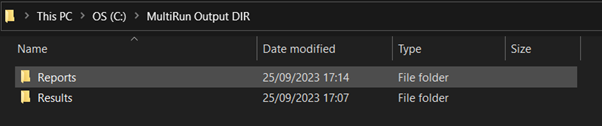
Figure 5: Intuitive naming for the folder in the output directory.
Let's generate some MultiRun reference results from the VeSyMA library.

Figure 6: Iterating version names can be useful for repeated runs of the same models

Figure 7: The zip folder contains the data related to the report file.
What we see is that the Report identifier field is the name of the folder within the Reports, with the version name used on the report file itself. The RPT file is the report file itself, with the associated zip file containing the report contents for each experiment run. Note, as we generated a set of reference results, this is denoted in the file name.
Moving onto the Results folder, this is where the interesting things can be found. Each version creates its own folder, with the result files themselves for each experiment located per library. In our test case here, we simulated the Experiments package in the VeSyMA library, so all the experiments (as zip files) are listed in a folder called VeSyMA.
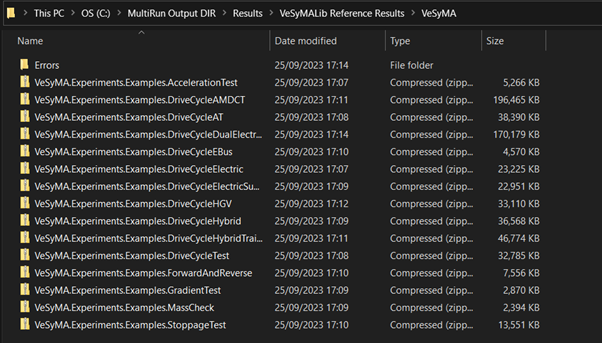
Figure 8: Each experiment is contained within its own zip folder.
Inside each of the experiment, the results, as well as the simulation/translation logs, variable list and flags list can be found. Now, if you were using the MultiRun tool to simulate a large batch of experiments, this is where you'd find the results files for interrogation. As we've detailed before, the simulation/translation logs and the flag lists can be very important in understanding what occurred during simulation and finding bugs if they have occurred.

Figure 9: Within the zip folder, all the pertinent data and logs can be found.
Regression testing using MultiRun
The examples above focus upon generating reference results and datasets. When a regression test is run using MultiRun, then the files outputted by the tool are slightly different but not by much.
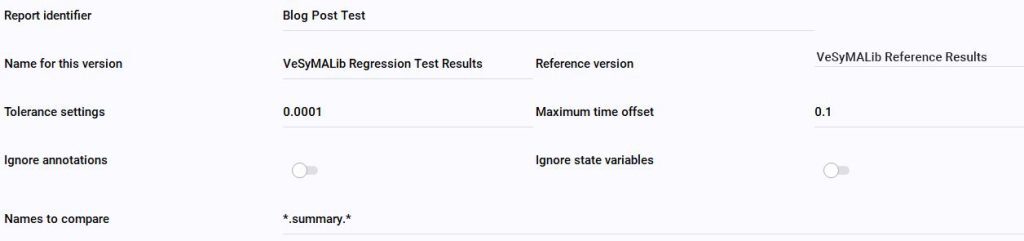
Figure 10: Intuitive and consistent naming is important, so the correct reference version can be located.

Figure 11: All report files reside in the same folder, denominated via the file name indicating if it's a regression test of reference generation run.
In much the same way as the reference results, the regression test sees an RPT file (the report) and the report data zip folder (containing the data bins for each experiment) created. Like the reference results, the file name string is made up from the report identifier and the version name. Unlike the reference results generation, no results files are output from MultiRun. All the differences in variables are contained within the report data zip folder.
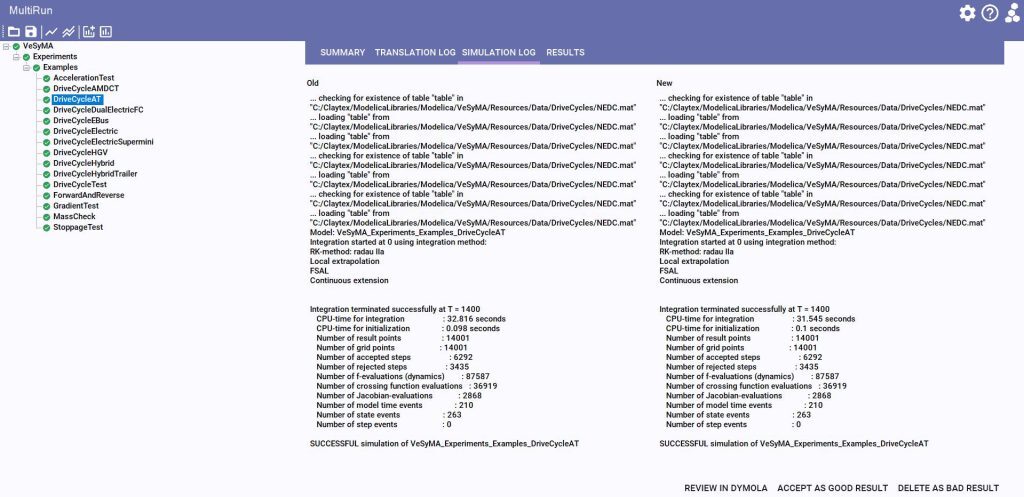
Figure 12: Similar to the Regression Test tool, it is easy to compare results between reference and current results. This includes the simulation and translation logs, with differences in results displayed in the results tab if a change is found.
Closing remarks
Being able to run batches of experiments in parallel is a useful tool, enabling you to quickly understand the impact of your changes. With a little further understanding of the tool, debugging of failed experiments is a little easier!
Written by: Theodor Ensbury - Senior Project Engineer