 MBSE
MBSE
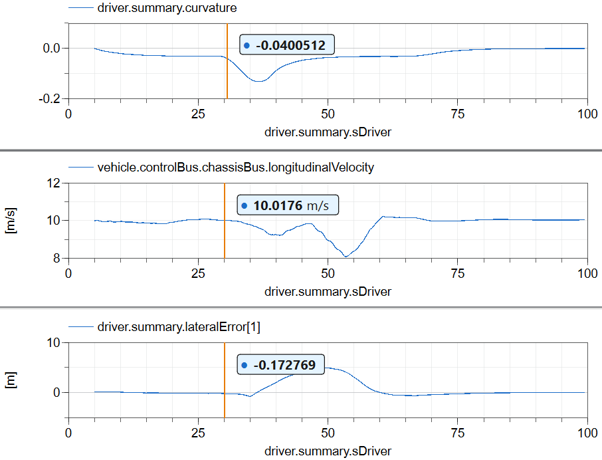
Let’s consider the example of simulating a vehicle travelling around a bend in the track. The goal is to tune the velocity profile so the vehicle stays on the road throughout the simulation, by reducing speed in the corners.
The Model
The vehicle model used for this example is shown in Figure 1.
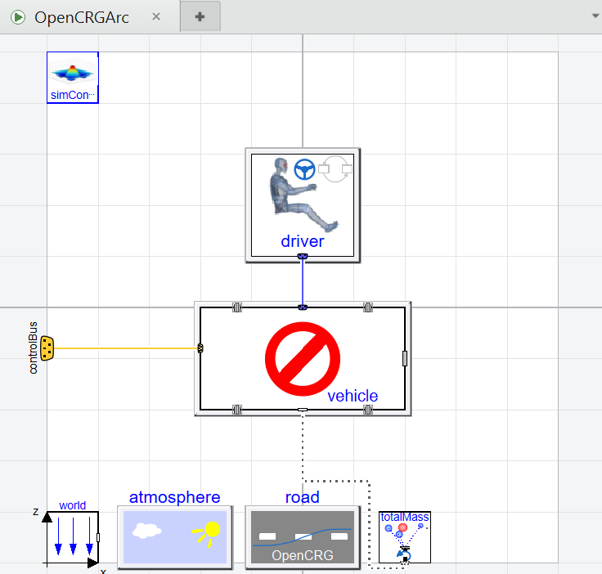
Figure 1. Vehicle model driving on a OpenCRG road that contains a corner
The vehicle model is a simplified go-kart model used for testing purposes. It is intentionally lightweight, allowing for fast compilation and simulation, with relatively few signals, resulting in smaller output files. The road model uses OpenCRG, and the selected track includes a representative corner.
The road model is configured so that the vProfile table provides the target velocity for the vehicle, as shown in Figure 2.
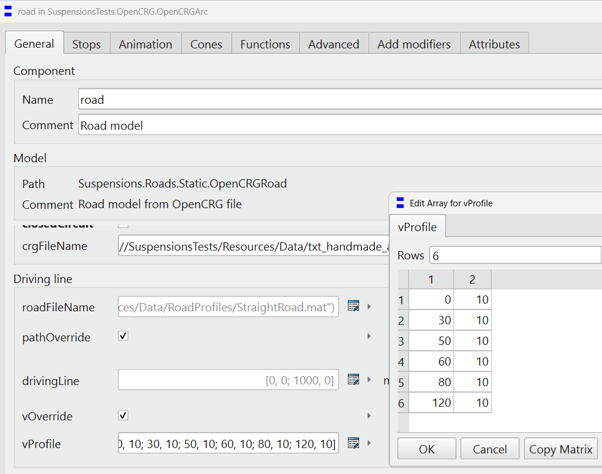
Figure 2. The parameter dialog for the road component has vOverride selected and the table vProfile set.
Simulation
This model is simulated and by tracing the vehicle it is obvious that the vehicle does not follow the road (Figure 3.)
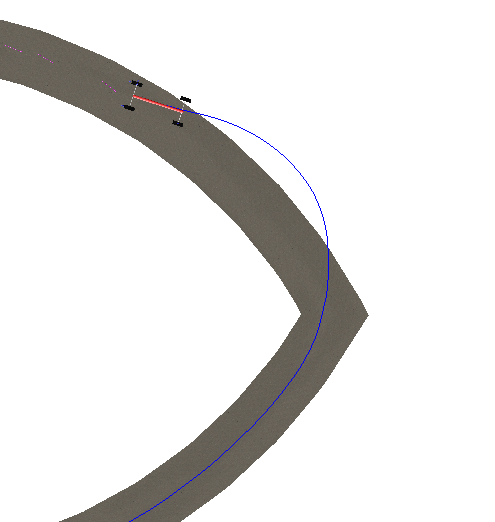
Figure 3. Vehicle model simulation shows the vehicle driving off the road after the bend
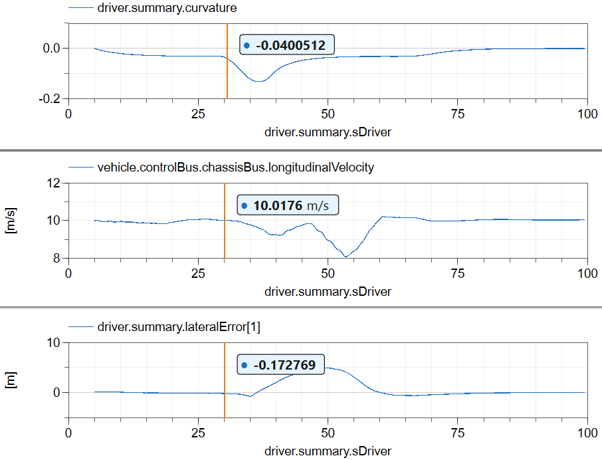
Modifying Parameters
The instinctive approach would be to return to the Graphics layer in Dymola, modify the vProfile, and re-run the simulation. However, this triggers a full model re-translation, which can be time-consuming.
A more efficient approach is to locate and modify the relevant parameters directly in the Variable Browser, as shown in Figure 5, or via the Diagram layer, as shown in Figure 6.
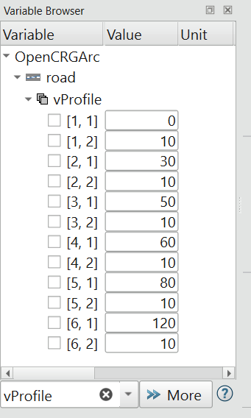
Figure 5. The variable browser with the filter being used to search for vProfile
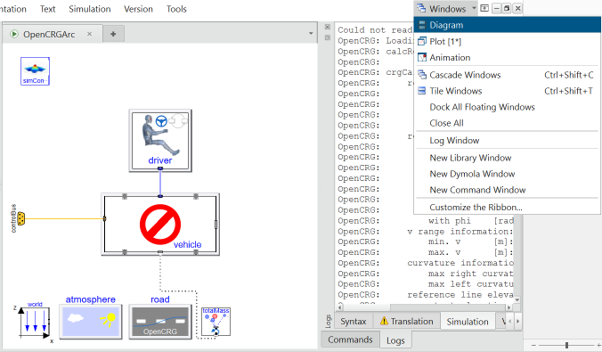
Figure 6. The Diagram can be navigated like the Graphics layer to modify parameters
Once the parameters have been modified, the vehicle can be re-simulated without triggering a full model re-translation, saving a significant amount of time.
In some cases, the parameters you want to adjust may not be available because Dymola has already evaluated them. For more details, along with a possible workaround, see Modifying evaluated parameters in multiple simulations – Claytex.
Note: Modified parameters are not automatically saved back to the Dymola model.
Storing the Modified Parameters
Once you have identified satisfactory parameter settings you should save them. This can be done by right-clicking the result in the Variable Browser and selecting “Save Start Values in Model”, as shown in Figure 7.
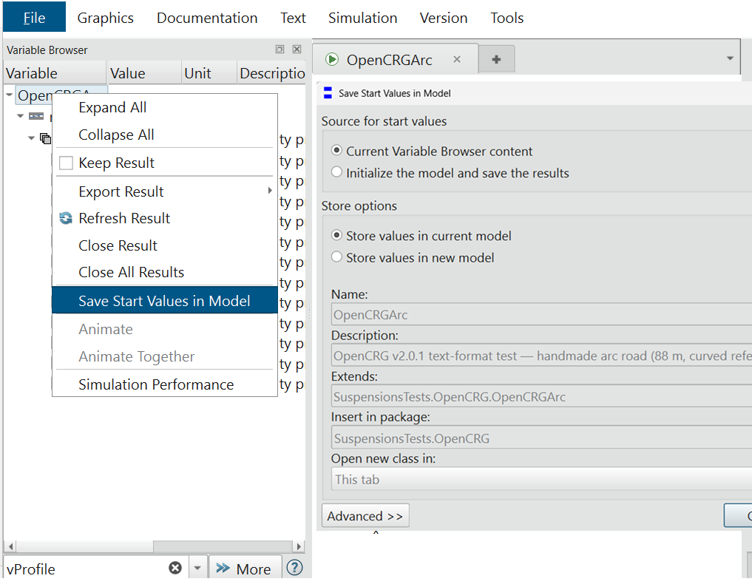
Figure 7. The Save Start Values dialog with the Current Variable Browser content is used to store the modified vProfile table in the original model.
Conclusion
Using this approach, it becomes quick and straightforward to identify suitable parameter settings that allow the vehicle to complete the track without leaving the road.
Overall, this method significantly reduces iteration time and can save a substantial amount of effort when refining simulations.