 MBSE
MBSE
Abstract: This blog post is aimed to describe the Find Connection command available in Dymola. This Dymola command is helpful for searching of signals created within large Modelica models especially using Modelica expandable connector. For demonstrating the features of this command, a Hybrid Electric Vehicle example available in a commercial Modelica library (VeSyMA) is used. It is shown that by using this command, systems modellers can not only search the signals of their interest efficiently but also switch back and forth the signals and their connected components of a system-level model in Dymola.
Keywords: Expandable, Connector, Signal, Find, Connection, Command, Modelica, Dymola, HEV, Component, Model.
Software/Tool/Language used: Dymola 2018 FD01, MSL 3.2.2
Download a copy of this blog post as a pdf: Modelica Expandable Connectors' Signals and their Connected Components in Dymola
Introduction
Dymola (DYnamic MOdelling LAboratory) is a systems-engineering software for modelling and simulation of multi-engineering & cyber-physical complex systems based on Modelica (an open source equation-based object-oriented) modelling language [1]. While developing and/or analysing models in Dymola, it is quite common for users to have to work or deal with very large and complex models. Regardless of how these models are created (from scratch or pre-existing), it is very easy to lose track of where the signals are first created or used in systems models. If a signal is generated from Modelica expandable connector [2], then, the signal as well as its connected components, can become harder to trace without making use of built-in commands or features in Dymola. With the help of the Dymola built-in command, Find Connection, the searching of signals and toggling between their related components is made easy. To understand the effectiveness of this command, a top-level experimental model (the definition based on [3]) with several hierarchical levels of components and signal connections is preferable. Therefore, for the demonstration purposes, in this blog post, a Hybrid Electric Vehicle (HEV) model available in a commercial Modelica library (VeSyMA)1 [4] is used.
Demonstration
The demonstration part of this blog post has three steps; they are as follows:
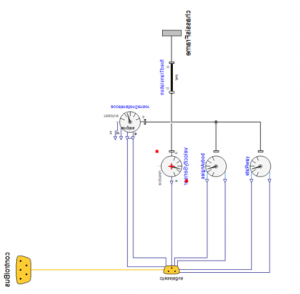
- Describe a system-level HEV model available in VeSyMA library and display its two hierarchical components. Also, show an expandable connector and a signal of interest in the 2nd hierarchical level of this selected HEV model.
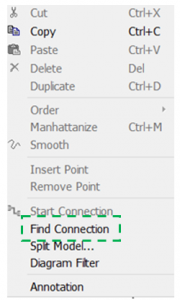
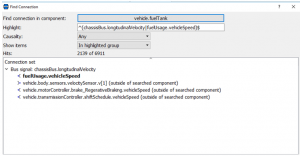
- Explore Dymola Find Connection command using the above-selected example.
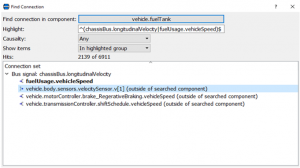
- Switch between a signal and the components it connects using Find Connection command in Dymola.
Step 1: A system-level Modelica model
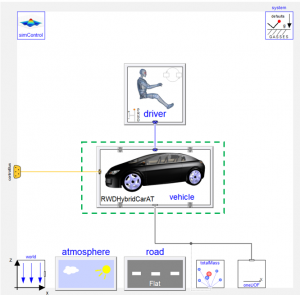
A system level Modelica model of an HEV from the VeSyMA library is shown in Figure 1. This model can be used to simulate the vehicle behaviour on predefined and custom drive cycles. In addition to the drive cycle analysis, this model can also be useful for predicting (or simulating) vehicle performance, fuel consumption, energy flow and for analysing powertrain integration.
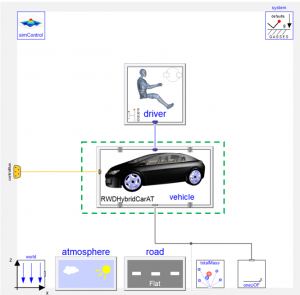
Path: VeSyMA.Experiments.Examples.DriveCycleHybrid
The model is used only to demonstrate the efficacy of Find Connection feature available in Dymola.
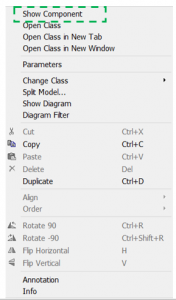
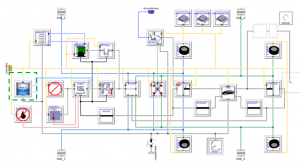
By right-clicking on the vehicle model in Figure 1 and selecting Show Component option in Figure 2, the rear-wheel drive car with automatic gearbox model will be displayed (Figure 3).
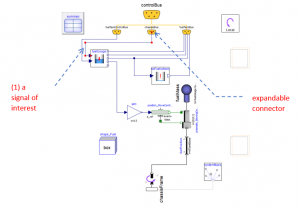
Step 2: Exploring the find connection command in Dymola
Step 3: Toggling between signals and their connected components
Conclusion
This blog post presented a useful built-in command in Dymola called Find Connection. With the aid of a system-level HEV model taken from a commercial VeSyMA library, the efficacy of this command is demonstrated.
1 For accessing VeSyMA library or experimenting with the example provided in this blog post, you must have a license.References
- Dassault Systemes, 2018 FD01. Dymola - Dynamic Modeling Laboratory, https://www.3ds.com/products-services/catia/products/dymola/.
- Hannah Hammond-Scott, Working with Expandable Connectors. https://www.claytex.com/blog/methods/working-with-expandable-connectors/.
- Raees B. K. Parambu, Handling of Modelica Model's Parameter Values in Dymola, https://www.claytex.com/blog/handling-of-modelica-models-parameter-values-in-dymola/.
- VeSyMA Library, https://www.claytex.com/products/dymola/model-libraries/vesyma/.
- Modelica language specifications version 3.3 Revision 1, https://www.modelica.org/documents