 MBSE
MBSE
Here at Claytex we typically release new versions of our Modelica libraries twice a year inline with the Dymola releases; allowing us to regularly provide our users with new features, enhancements and bug fixes. The changes between versions of our libraries may include changes of names, parameterisation or locations. If a user tried to use the newer library without updating their models to be compatible, there would very likely be errors in their models. To help our users migrate to newer versions of our libraries, we provide conversion scripts. In this blog post I will talk about migration of your libraries to newer versions of our libraries using conversion scripts. It turns out this isn't as intuitive as one may think.
What does a conversion script look like?
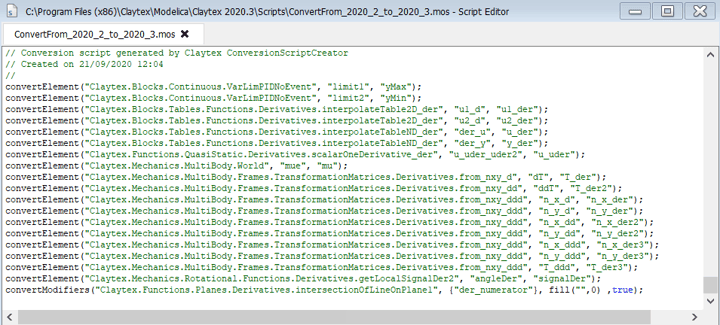
Conversion scripts are normally located in the Scripts folder within a library installation. They are Modelica script files that can be opened in any text editor or the inbuilt Dymola script editor.
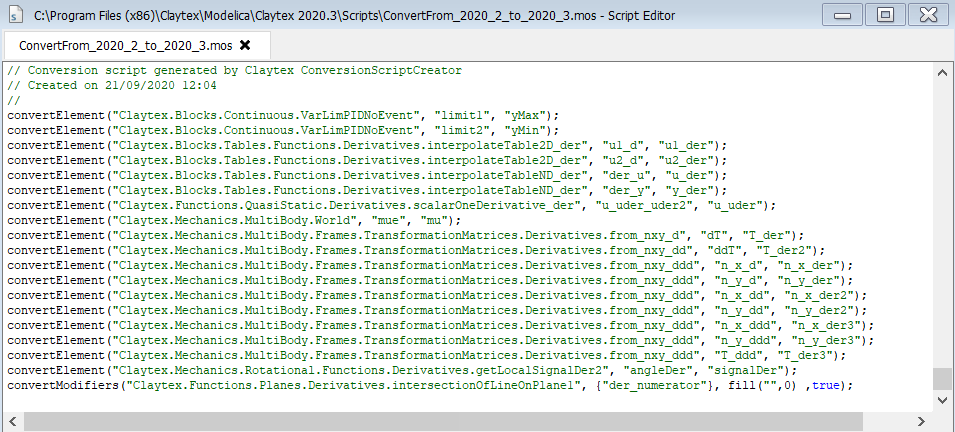
As you can see in the example above, a conversion script contains commands describing changes between versions of libraries which allow Dymola to update a user's models to be compatible with the newer version.
We regularly use these commands in our conversion scripts:
- convertClass() - Changes the reference path of models that have been renamed or moved in extend clauses and type declarations.
- convertElement() - Updates references to connectors, parameters and variables in equations, connections and modifiers.
- convertModifier() - Converts parameter bindings in modifiers or removes them entirely.
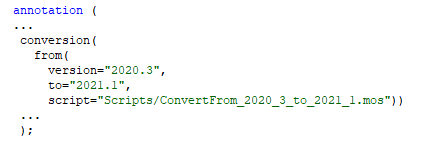
Within the top level annotations in our libraries we use conversion annotations like the one below. These annotations tell Dymola which conversion script is required when migrating between library versions.
How does Dymola know what library versions are compatible?
Your library should contain uses annotations, like those beneath, that tell Dymola what other libraries are used and the compatible versions of these libraries.
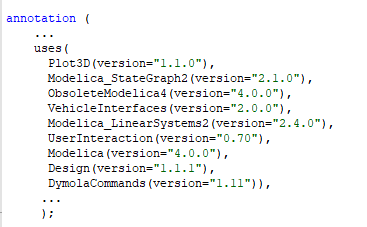
Uses annotation can be seen at the bottom of any documentation layer within a library, even if the text layer is hidden.
Migration of your libraries
When you want to migrate your own models and libraries to use newer versions of our libraries you should:
- Take a look at the release notes for the new libraries:
- This will give you a heads up of the changes you can expect in your models.
- The notes will also point out any updates required that we couldn't implement automatically through the conversion scripts and what you should do.
- Ensure your libraries are saved and backed up:
- We suggest using version control tools to do this. For the benefits of using version control, take a look at this blog post.
- Open Dymola.
- Open the newer versions of the libraries your models are dependent on, as listed in the uses annotations.
- Run the conversion scripts for all the libraries changing version. (I agree... this isn't intuitive.)
- The scripts are in the library's Scripts folder.
- They are run like any other script in Dymola.
- Open your library or model to be migrated:
- Any conversion updates made to your models will appear in the Syntax log.
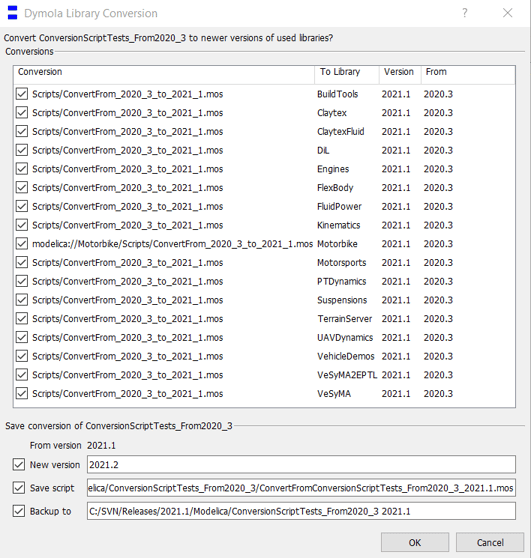
- A conversion dialog box will appear, like that shown in Figure 4:
- This dialog box lists the conversion scripts for all the libraries with newer versions open.
- It has an option to update the version number of your library.
- It has an option to generate a conversion script for your library.
- It has an option to create a backup of your original library.
- Once you have set the options, click OK:
- More conversion updates may appear in the Syntax log.
- The uses annotations in your library should be updated.
- Check the uses annotations in your library to confirm updates.
- Perform a check of your models in Dymola to identify errors.
- Save your migrated library.
- Perform testing of your library and models:
- Take a look at Effective Modelica Library Development and the Multi-Run tool for help with testing.
Keeping your libraries up-to-date
We recommended updating to newer versions of our libraries and Dymola as soon as possible to take advantage of improvements. This also minimises the amount of conversion changes required simultaneously.
Hopefully this blog post will support you in keeping your libraries up-to-date and make the process of converting your libraries more clear.
There is more information on the conversion commands and how migration works in the Migration appendix of the Dymola User Manual.
Written by: Hannah Hammond-Scott - Modelica Project Leader