 MBSE
MBSE
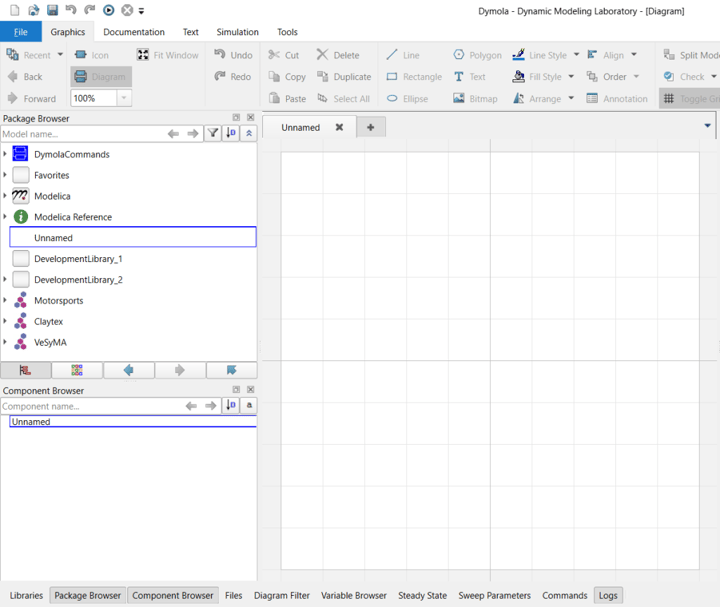
This blog post looks at setting up Dymola for maximising usability in both library development and simulation modes.
Libraries and Package Browser setup
In the Dymola window you will see several buttons at the bottom. These will allow you to enable and disable various windows, hence customising your Dymola user experience.
One feature that seems popular with new users is that of splitting out the library/package trees for encrypted libraries and their own development libraries. By default Dymola will group all loaded libraries within the package browser as shown below:
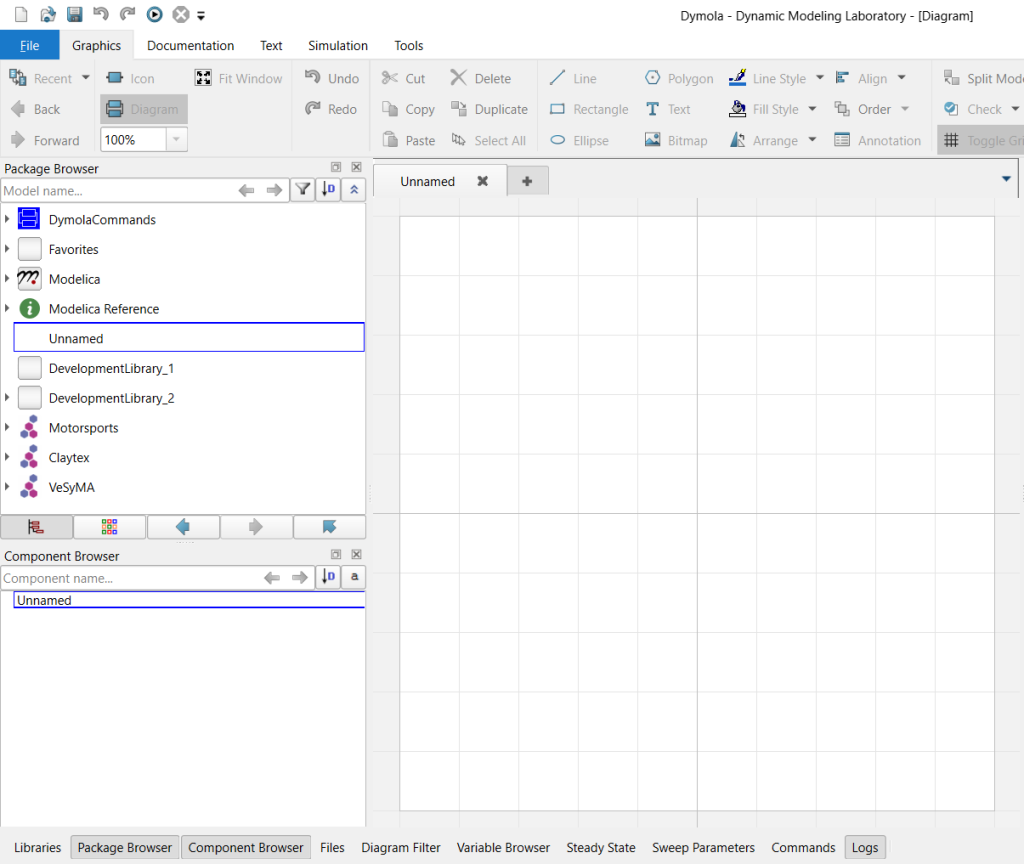
Image 1. Image showing the separation of encrypted and non-encrypted libraries on the left hand side of the Dymola window
In our case we have 4 encrypted (write protected in this case) libraries: Modelica, Motorsports, Claytex and VeSyMA. We also have two development libraries loaded called DevelopmentLibrary_1 and DevelopmentLibrary_2.
Users might prefer to view and access their development libraries independently to the commercial ones. This can be done by clicking on the “Libraries” button in the bottom left of the Dymola window.
When this button is pressed, the Dymola window appears as shown below with encrypted and non-encrypted libraries shown in separate docked browsers:
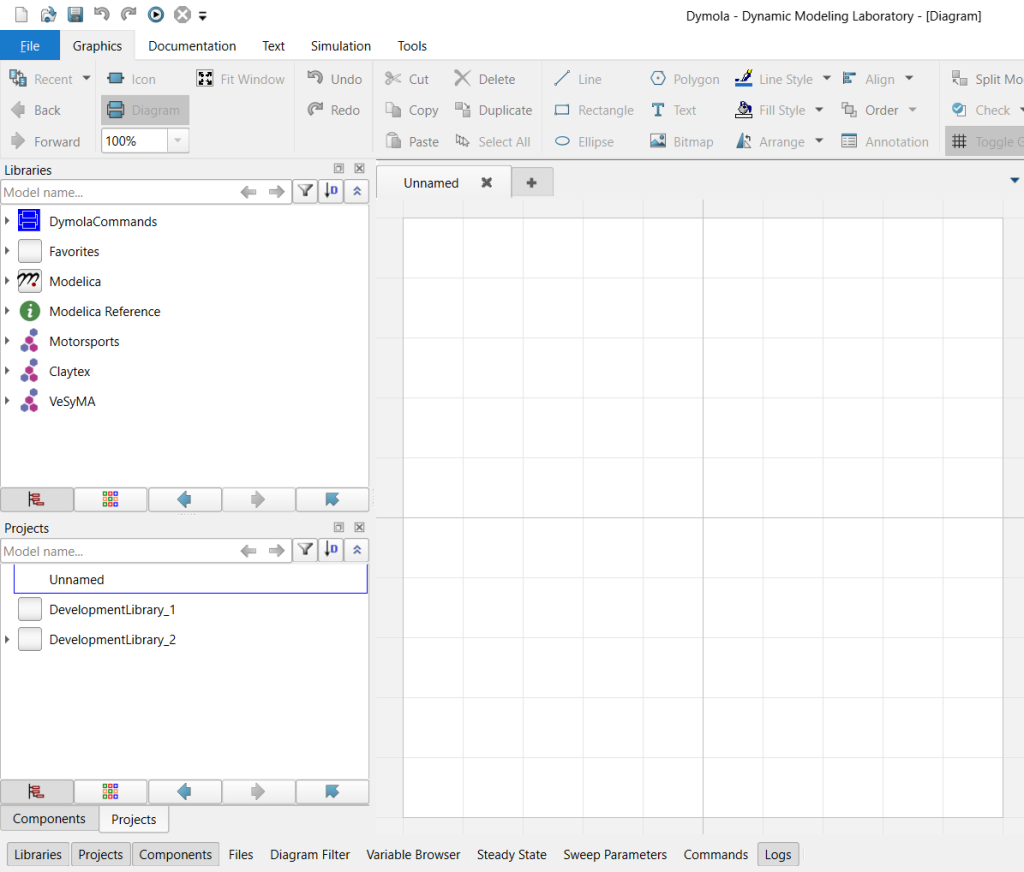
Image 2. Image showing the separation of encrypted and non-encrypted libraries on the left hand side of the Dymola window.
Docking the Logs within the Simulation Window
The default layout of a Dymola Simulation window would generally look as in the image below with both the Logs and Commands windows together at the bottom of the window.
Whilst I would keep the Commands window in the default position due to the “only a few lines” nature of commands I use (which are displayed, for example, when I translate or simulate an experiment), I do find that dragging the Logs window (from its vertical bar to the left of it) and docking it on the right side of the Dymola user interface window suits it better. Logs are generally quite a few lines of text, more so than Commands I would say. In the second image below you can appreciate how dragging and docking the Logs window on the right hand side of the overall Dymola simulation window allows us to better visualise the information displayed.
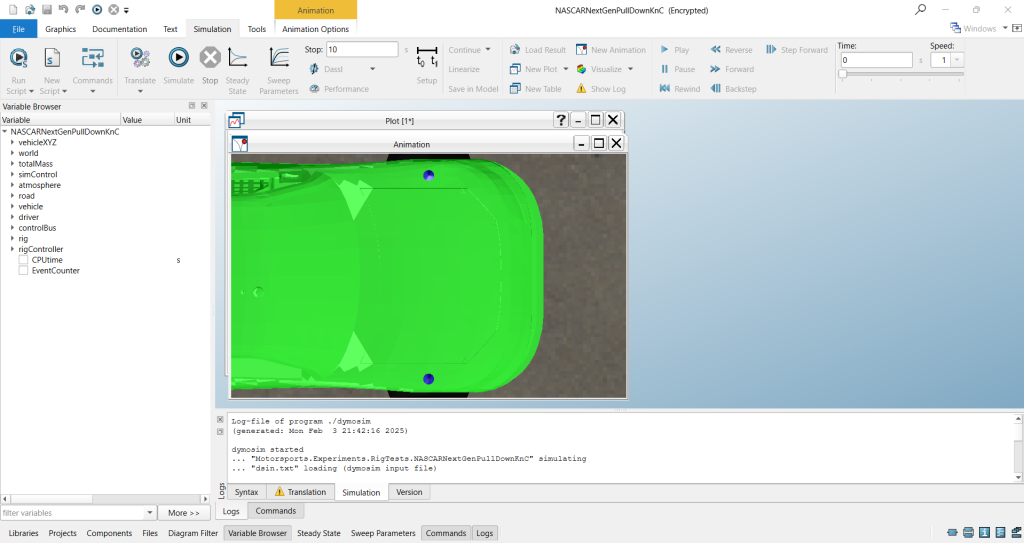
Image 3. Image showing the default location of the logs window in the Simulation mode within Dymola.
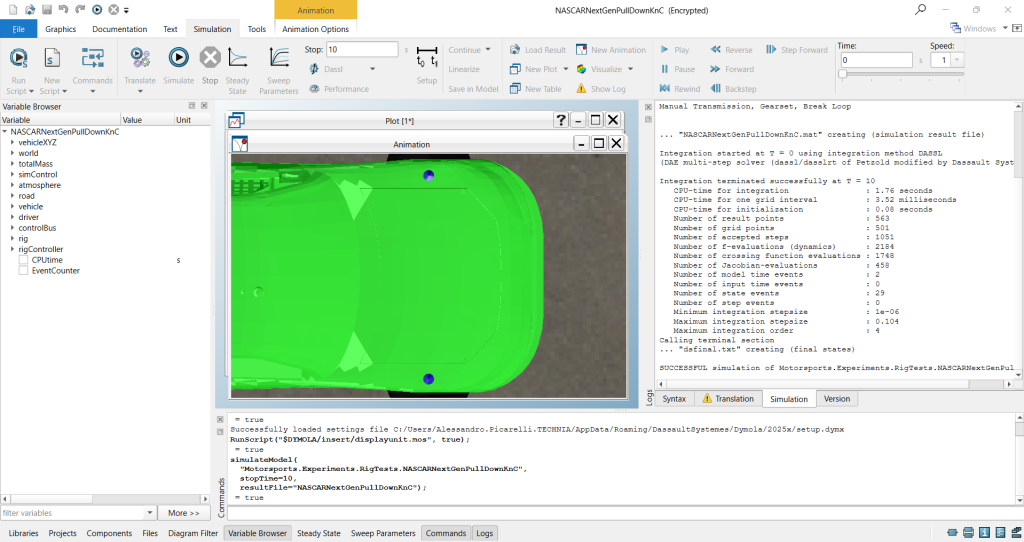
Image 4. Image showing the revised and more suited (in my opinion) location of the logs window in the Simulation mode within Dymola
Top Ribbon
Lastly for today, if you want to create more space and make the top ribbon auto-hide, simply double click on any of the menu items: File, Graphics, Documentation, Text, Simulation….
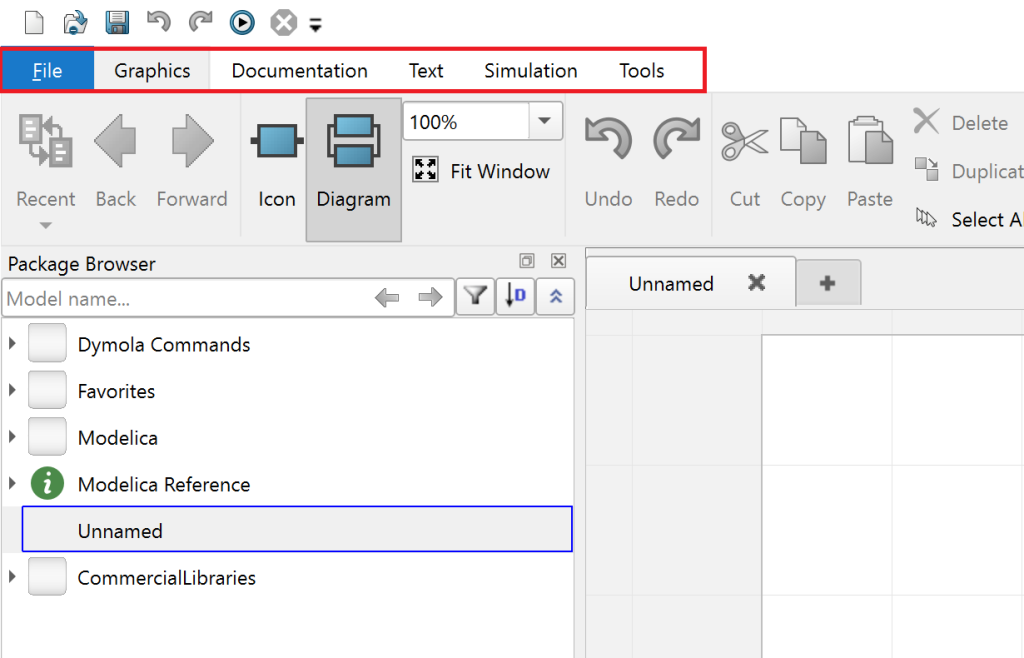
Image 5. The top menu items you can double click on to expose/hide the underlying ribbon.
….and your Dymola user interface window will look like this:
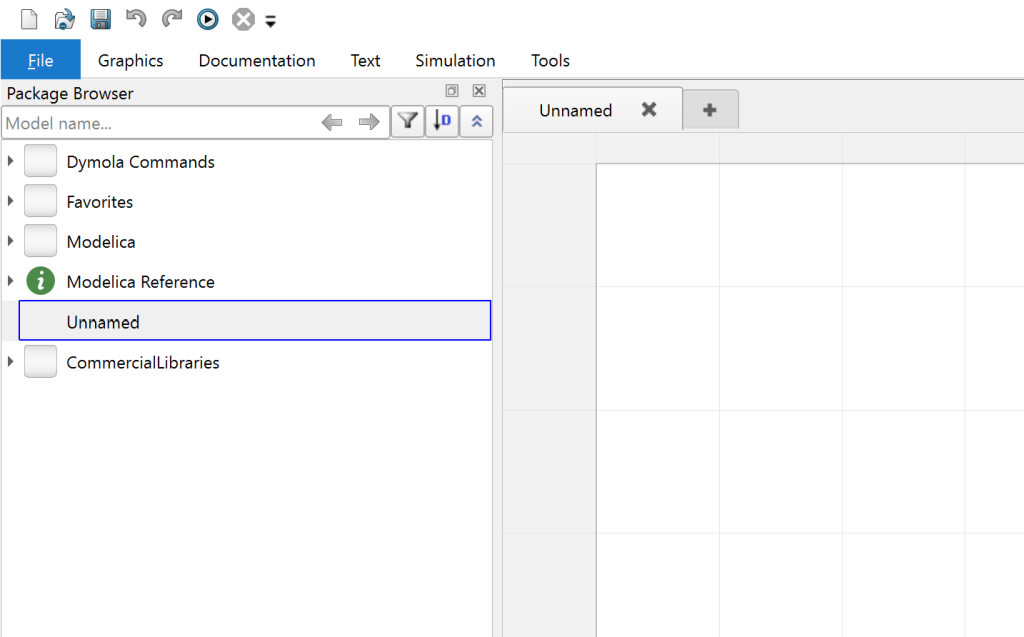
Image 6. The top menu items underlying ribbons are now hidden until you click on any of the menu headers.
We hope you have found these two simple tips useful and we encourage to explore further customisation of your Dymola windows by experimenting with the other options you find, in particular within the ribbon along the bottom of your Dymola user interface.