An interesting functionality in Dymola is the capability to split and duplicate parts of a model.
This can be done by selecting some components (at least 2) on the diagram layer of the model and right-clicking. The following window pops up with an option to split the model:
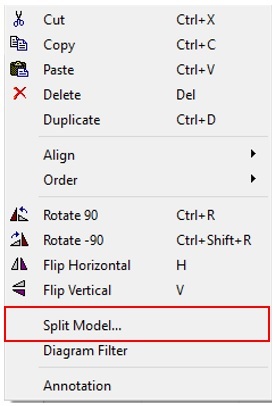
Figure 1: How to split a model
Clicking on “Split Model…” opens this window:
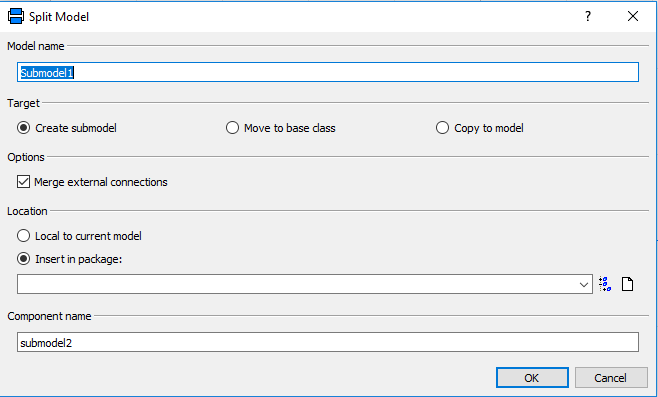
Figure 2: Model splitting options
As we can see on the picture above, 3 options are available: Create submodel, Move to base class and Copy to model. Let’s have a try with these options on a simple model.
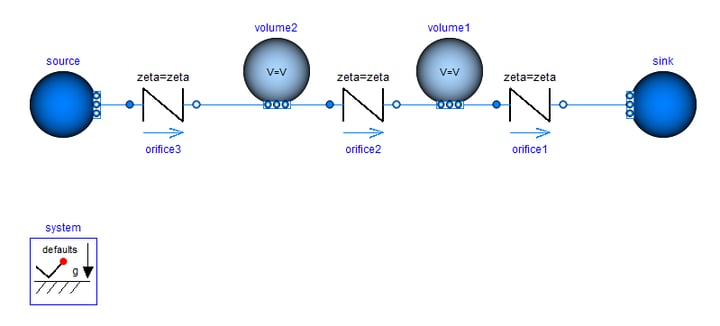
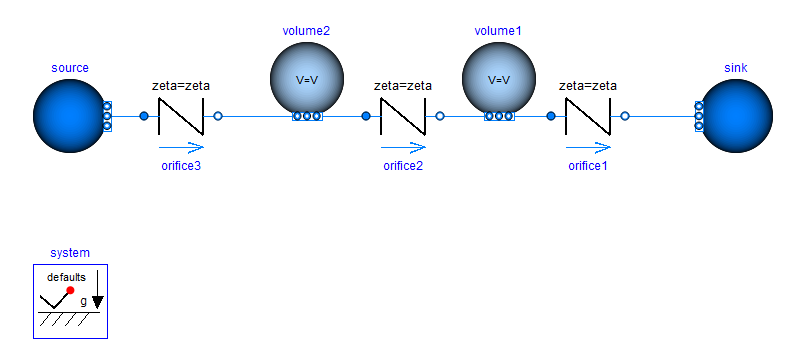 Figure 3: Simple fluid model to test the functionality
This simple fluid model is composed of a source, a sink, 3 orifices and 2 volumes. Let’s select part of the model and investigate what the 3 options do:
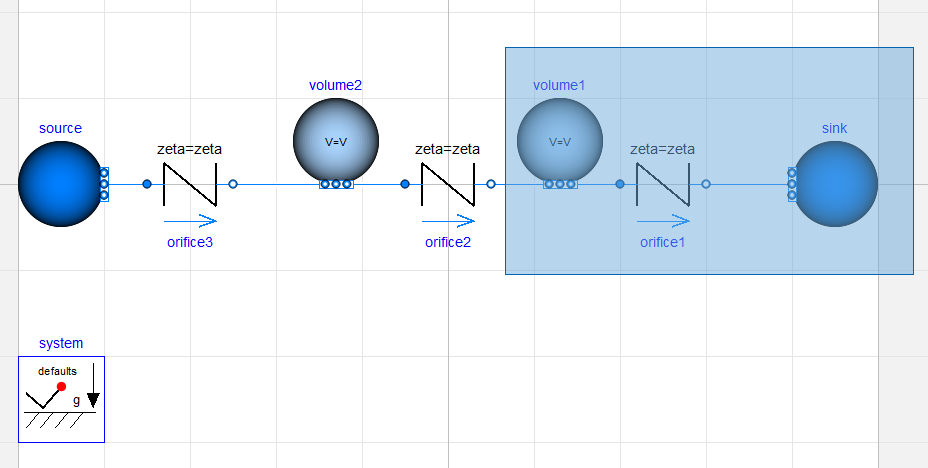
Figure 4: Selection of the chunk of the model we are interested in
- Create submodel
This will group the selected components in a submodel and place the model in the package we selected in Insert in package (see figure 2). If no package is selected, the submodel is saved at the top level of the package browser.
Our model now looks like this:
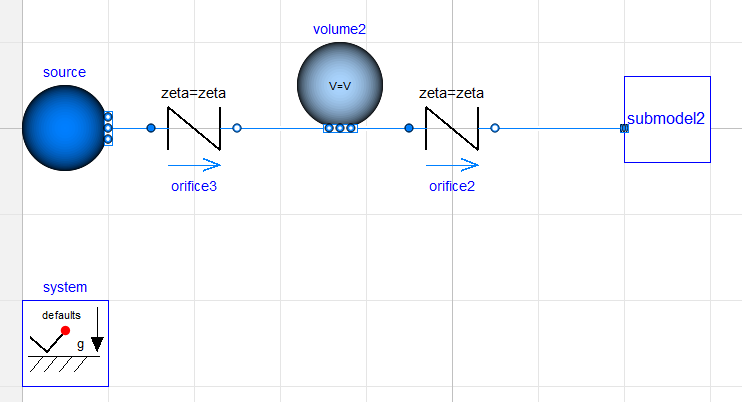
Figure 5: A submodel has been created
The submodel regroups the components we have selected and features the interface needed to connect it to the rest of the model (i.e. a fluid port in this case):
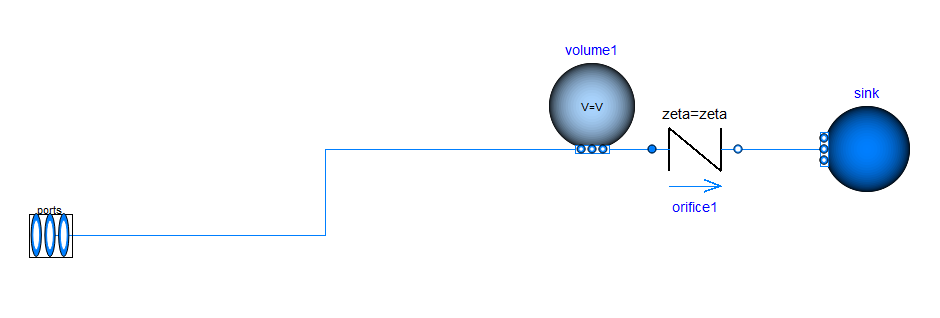
Figure 6: Submodel
- Move to base class
This will create a new model with the components we have selected and use this new model as a base class for the original fluid model (the model we started with will extend from the new model we create). The original model looks unchanged from the diagram layer but when looking at the text we see that it extends from our new model (BaseClass1 on the picture below):
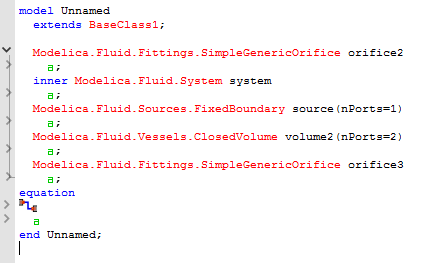
Figure 7: Text layer of the model after using the option “Move to base class”
This option is particularly useful when we need to create several variants of the same model.
- Copy to model
This will duplicate the selected components to a new model. The original model remains unchanged.
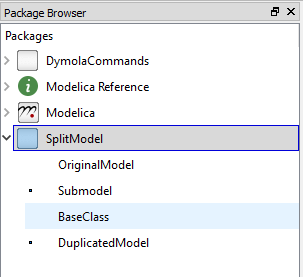
Figure 8: Our new library