 MBSE
MBSE
Interfacing Dymola and Simulink is quite straight forward.
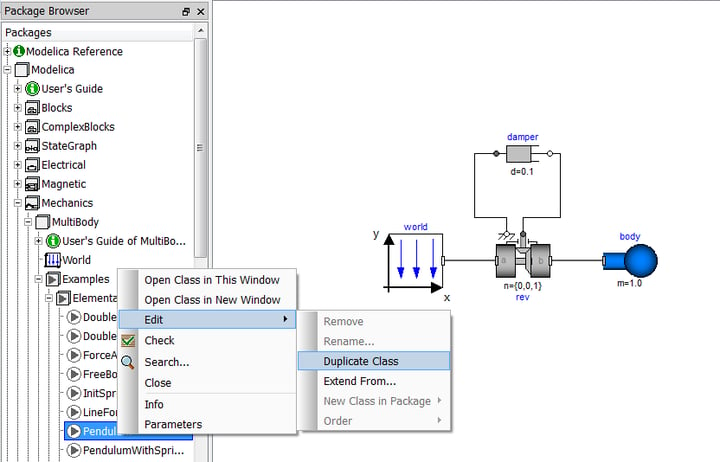
In this example I will look at exporting a simple driven pendulum model from Dymola to Simulink as an s-function. First, create a copy of the example model Modelica.Mechanics.MultiBody.Examples.Elementary.Pendulum model and call it DrivenPendulum.
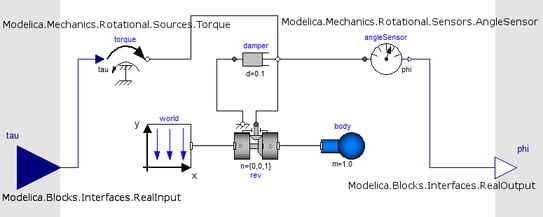
To setup the model for use in Simulink we have to define the input and output signals that will be exchanged between the physical model defined in Dymola and the control system in Simulink. Open your new DrivenPendulum model and then add a torque actuator, angle sensor, and input and the output connectors as shown below. The full Modelica names for the components to be added are given in the diagram.
Now go to the simulation page and translate the model by pressing the  button in the toolbar, this should return true in the Commands window.
Open Matlab (In Dymola 2012 we support Matlab releases from R14SP3 to R2010b). If this is the first time you've compiled a Dymola model as an s-function you will need to complete the following setup steps:
- A directory needs to be added to the Matlab directory so go to File->Set Path and use the Add with Subfolders option to add the directory <Dymola>/Mfiles where <Dymola> is the installation location of Dymola (usually c:/Program Files).
- Configure the mex compiler. To do this type mex -setup at the Matlab command line and select a Microsoft Visual C++ compiler. The LCC compiler will not work.
After completing the setup steps if you open Simulink you will see a new library called Dymola Block. Open this library and you will see that it contains one object called DymolaBlock. Open a new Simulink model and drag in the DymolaBlock.
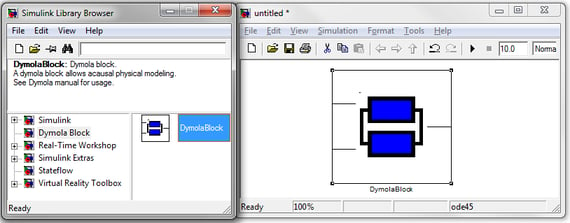
Double click on the DymolaBlock component in your Simulink model to open the parameter dialog box as shown below.
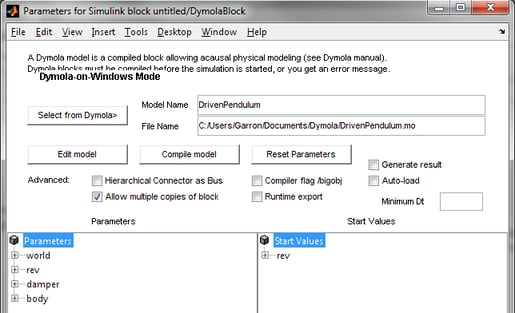
Press the Select from Dymola button, this selects the current model in Dymola which should be the DrivenPendulum model. Then press the Compile model button, this prompts Dymola to translate the model as an s-function, and then Matlab builds this into a mex-file that is interfaced with the DymolaBlock.
When the model has finished compiling the Parameters window and Start Values window will be populated with parameter and start values from your model. These values can be changed in this dialog box, for example the mass of the pendulum could be changed from 1kg to 10kg.
Go back to the Simulink model and you should see the tau and the phi connectors have been added to the DymolaBlock. Add a SineWave to the tau input and a Scope to the phi output:
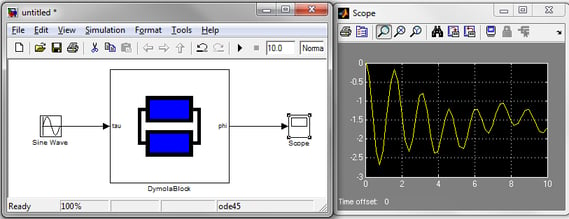
When you simulate the model you should get an output in the scope as above.
This is a very simple model but the same principles apply regardless of the size of model.