This is the third in the Dymola Basics series that are describing some of the basic principles and features within Dymola. This follows the second post about the different layers of a model, such as the Diagram and Text layers. This post will be describing the Package Browser that is found in Modelling window of Dymola in all the layers described in the previous post.
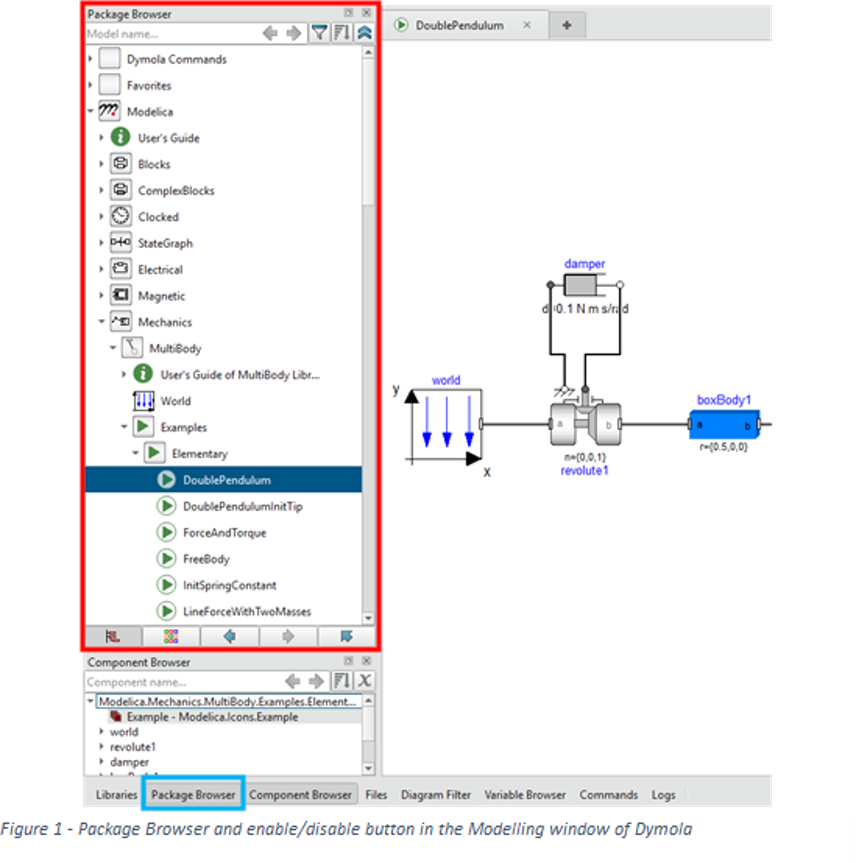
The Package Browser, highlighted below in Figure 1, is found on the left-hand side of the modelling window, above the Component Browser that was described in the first in the Dymola Basics series. It allows a user to explore all the packages and models that are open and available to use, in this case it has the Modelica Standard Library (MSL) open with the DoublePendulum example that is being used throughout this series. There are two different viewing options for the browser, with the default being the Tree View as shown in Figure 1, but there is also the Icon View, shown in Figure 2, that shows the libraries in a similar way to folders, where only the components and packages at that level are displayed. The different views are toggled from the Tree View and Icon View buttons shown at the bottom. Also highlighted in blue in Figure 1 is the button to enable/disable the package browser.
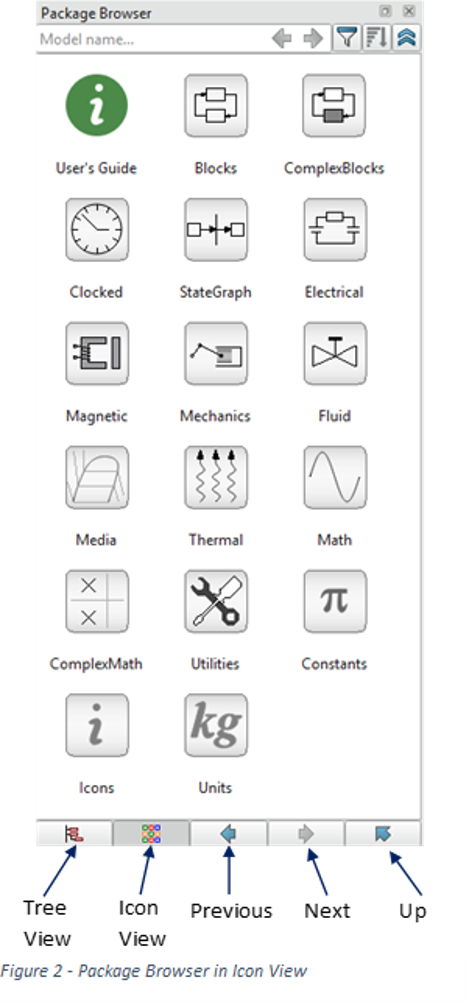
The arrows detailed at the bottom of Figure 2 are used to navigate through the package browser; the Previous arrow returns the previous location to the current viewed package; the Next arrow moves forward in the history of viewed packages if the Previous arrow has been used; the Up arrow shows the package above the one currently viewed.
In either view mode the package browser automatically shows the package of the class that is newly activated to the modelling window, either through switching tabs between classes or opening a new model from a previous one.
As previously mentioned, the Package Browser allows a user to see all opened libraries but libraries can either be opened by using the Open or Load functions in the File dropdown menu or if the library locations have been set correctly then the libraries can be selected from Libraries dropdown menu within File.
When a desired class has been found then it can be opened on current active modelling window or if right clicked then the menu shown below in Figure 3 and from there a class can be opened, opened in a new tab or window. It also allows access to the Parameter, Attributes and Info(documentation) dialog boxes of any class to view all parameters with default values but does not allow any modifications to be made.
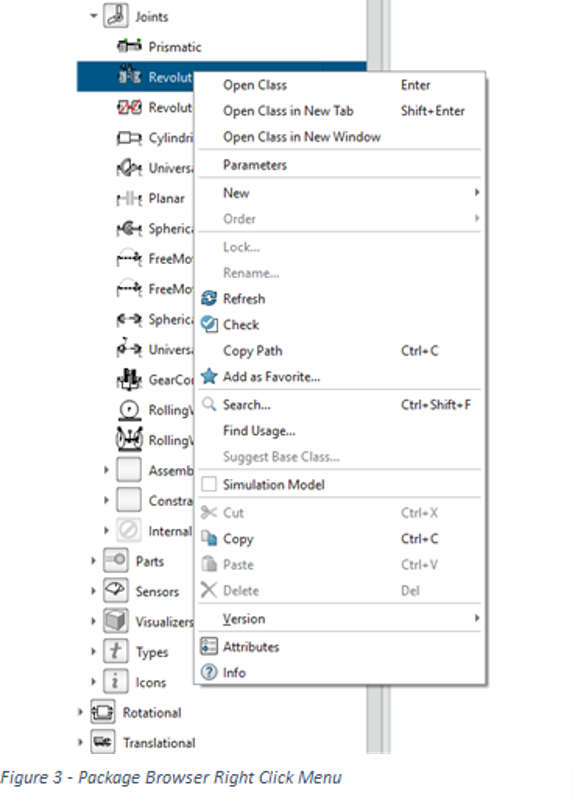
The context menu in Figure 3 also allows a user to check, copy the full path, find the use of the class and add it as a favourite. The Search function is of best use on packages and allows the search of a selected package rather than searching the whole library.
The Package Browser is used to insert components into models, this can be done by dragging and dropping models into the Diagram Layer or if dragged into the Text layer then it drops the full path.