
Are you ready to talk?

Changing the default font size in Dymola

Table of contents

To change the default font size in Dymola

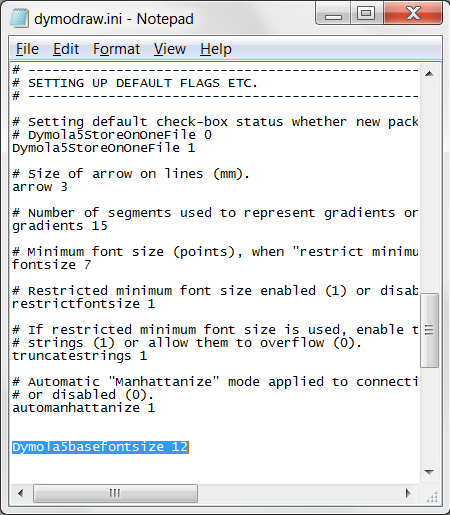
  • Locate the dymodraw.ini file in your Dymola installation insert directory
  • Open dymodraw.ini in note pad or similar editor and change/add the string: Dymola5basefontsize 12 for example for font size = 12
  • This will affect the font size in menus and windows within Dymola from the moment Dymola is started

Need to talk to an expert?

Our engineering teams are on hand to provide tailored guidance and support with a deep knowledge of the full Dassault Systèmes portfolio.

Want to receive more content like this?

Sign up to receive a weekly roundup of Expert insights as they are published...

  • Related news & articles straight to your inbox
  • Hints, tips & how-tos
  • Thought leadership articles